Printing the test and the answer key
The paper you print is made from the same test AutoMarkHQ marks against: its questions and answer key. So the numbering, answer spaces and marks your students see are the ones AutoMarkHQ reads when the papers come back. You print it from the test editor, either while you’re writing a new test or from a test you’ve saved.
The preview beside the editor
Section titled “The preview beside the editor”While you write, the right-hand side of the editor shows the actual printed page and redraws as you type. You don’t need to save for the preview to catch up. It appears once the test has a title and at least one question, and with Follow my edits on, it stays on the page holding the question you’re working on.
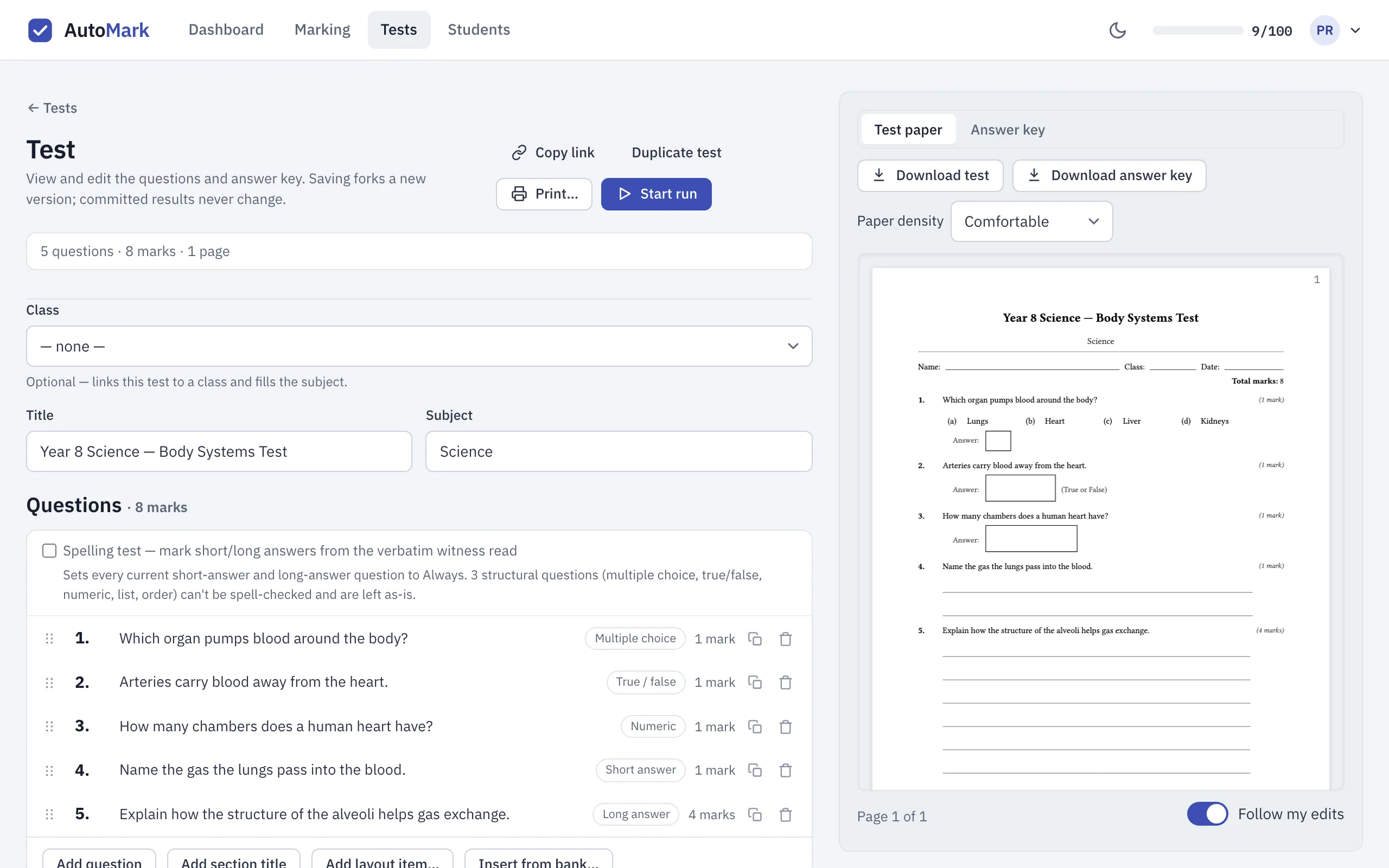
Each paper has:
- the title and subject, a line for the student’s name, class and date, and the total marks;
- every question with its marks on the right, and an answer space shaped for its type: a box for a letter, a word or a number, or ruled lines for a written answer;
- the page number on every page, and the test’s title at the top of every page after the first, so a loose page can still be matched to its test.
Papers are A4.
The answer key
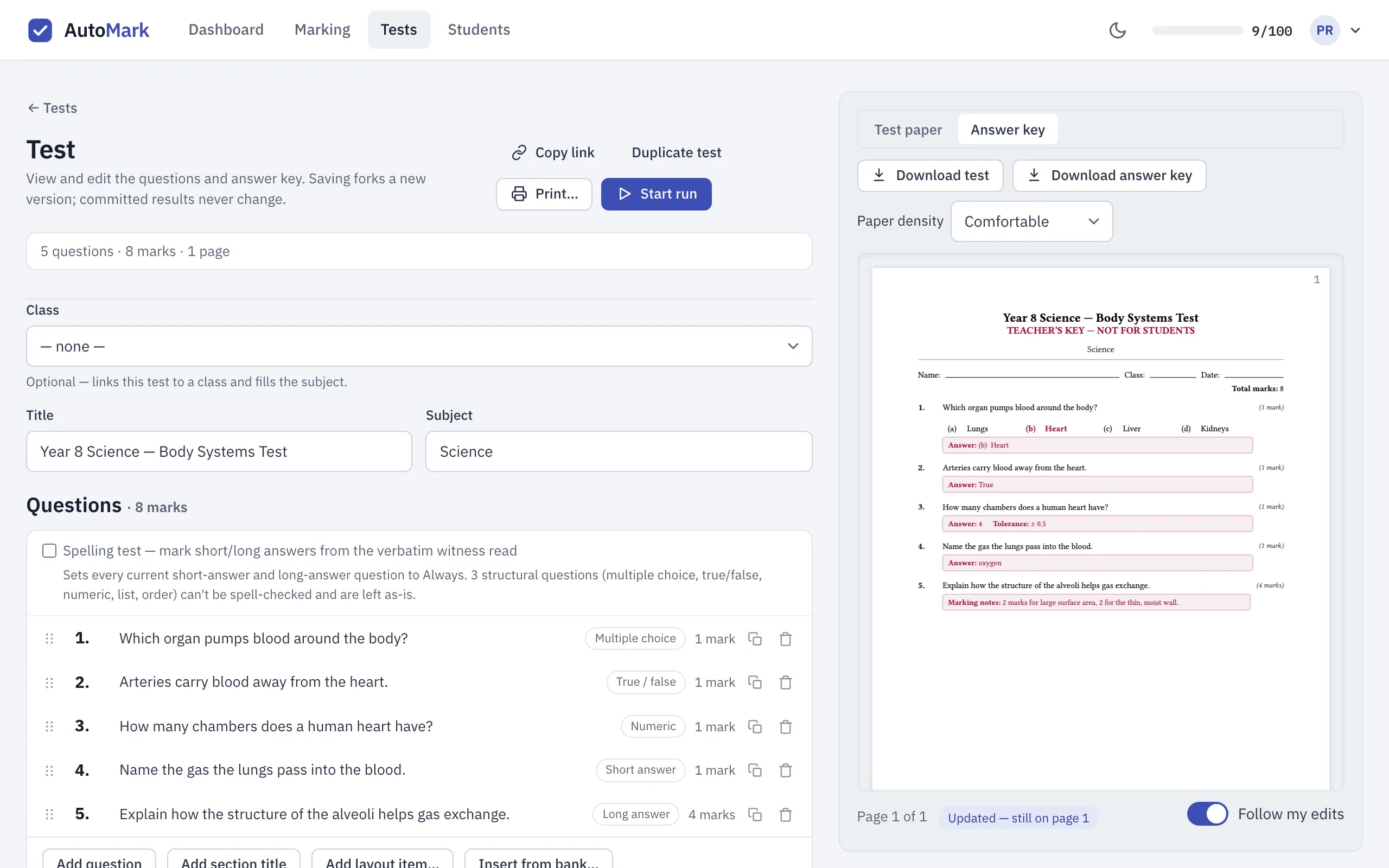
Section titled “The answer key”Switch the preview from Test paper to Answer key to see the key for the same test. It has the same layout, marked “TEACHER’S KEY — NOT FOR STUDENTS” at the top, and every question carries its answer in a highlighted note:
- the correct answer, or for multiple choice, the letter and its option;
- the tolerance you allowed on a number answer;
- any other answers you’ve chosen to accept;
- your marking notes on a long answer. They print on the key only, never on the student paper.
A question with no answer in your key says so on the key. AutoMarkHQ has nothing to mark it against, so every student’s answer to that question comes to you to check.
Download
Section titled “Download”Download test and Download answer key sit above the preview. Each saves a PDF named after
your test, with _key added for the key. Both are made from what’s in the editor at that
moment, including changes you haven’t saved yet. If you have made changes, save the test as
well, so the paper you hand out and the test AutoMarkHQ marks against stay the same.
Previewing and downloading don’t use any credits, however often you do it.
Ready to print?
Section titled “Ready to print?”Print… at the top of the editor opens a short checklist before you download:
- whether everything in the editor is saved. A saved test you’ve just opened shows All questions saved. Once you change something, it shows Unsaved changes until you save;
- whether every question has an answer in your key. If one doesn’t, Fix takes you to it;
- the total marks and the number of questions;
- that the paper has a name and date line;
- how many A4 pages the paper runs to.
These are warnings, not gates. AutoMarkHQ won’t stop you printing a paper with a question still missing its answer. You decide whether that matters for this test.
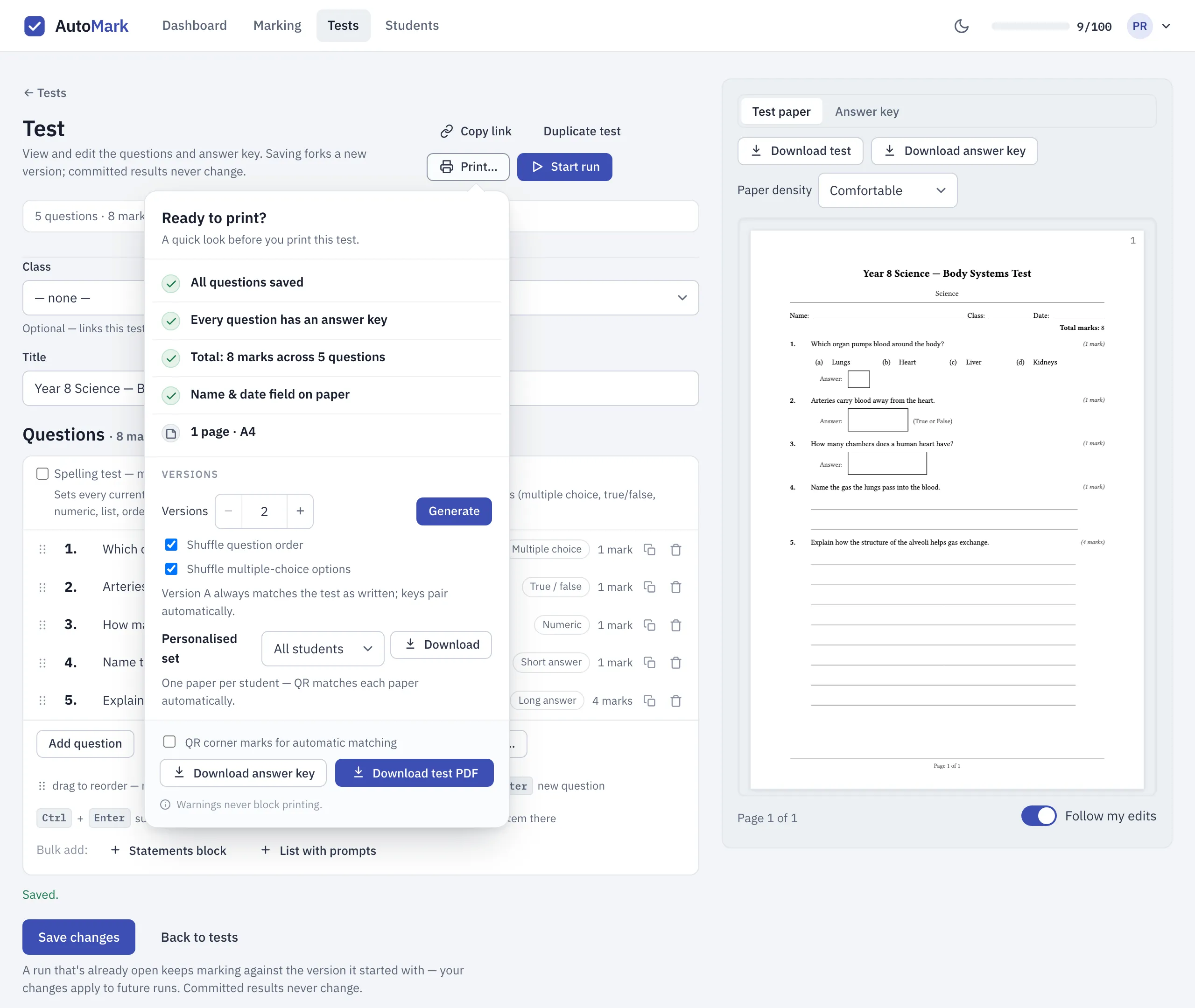
The checklist also holds the printing extras for a saved test: separate versions of the paper, a set with each student’s name already printed on it, and corner marks that help AutoMarkHQ match each scanned page to its test. To add corner marks, tick QR corner marks for automatic matching. It’s ready as soon as you open a saved test. While you have unsaved changes it’s greyed out, because the marks point to the saved test: save, and it’s available again. Printing papers and test versions covers those extras, and what to do when you edit a test you’ve already printed.
After you print
Section titled “After you print”Hand out the test and keep the key for yourself. When the papers are done, scan and upload them. AutoMarkHQ marks them against this test, shows you anything it isn’t sure of, and records nothing until you’ve reviewed and committed the marks.