Long answers you mark yourself
Some questions don’t have one right answer: an explanation, a paragraph, a short essay. For these, use a Long answer question. AutoMarkHQ still reads the student’s handwriting and puts it in front of you. It never decides the mark. Every long answer waits for you in review, and the run can’t be recorded until you’ve marked each one.
Adding a long answer to a test
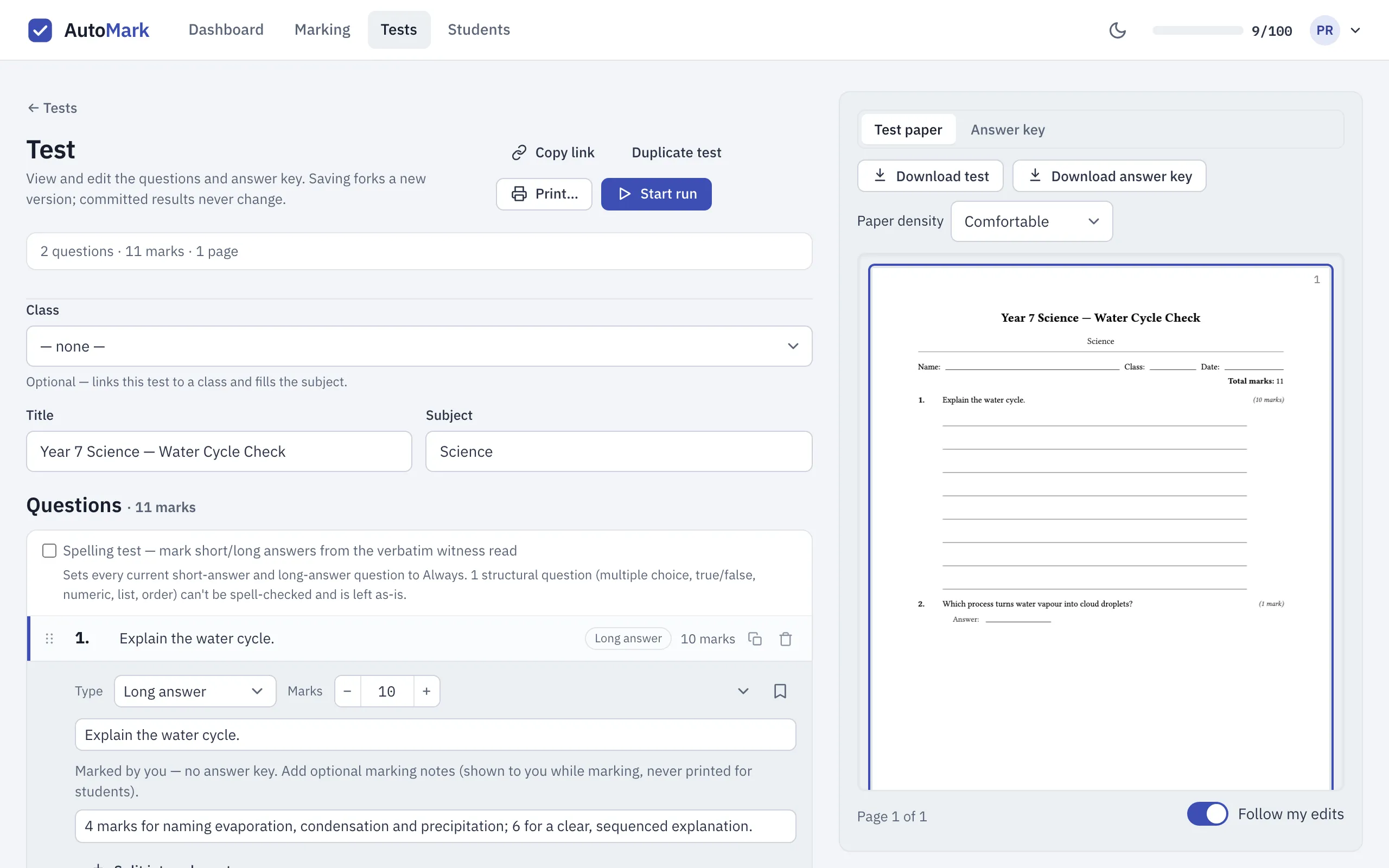
Section titled “Adding a long answer to a test”In the test editor, set the question’s Type to Long answer and give it its marks. There’s no answer key to fill in. Instead you can add marking notes: your own rubric, such as how the marks split between ideas and explanation.
Your marking notes appear beside each student’s answer while you mark. They’re printed on your answer key in place of a key. They are never printed on the student’s paper.
To choose how much room students get to write, open the question’s options and set Printed answer space: a number of ruled lines, or an answer box instead.
Marking long answers
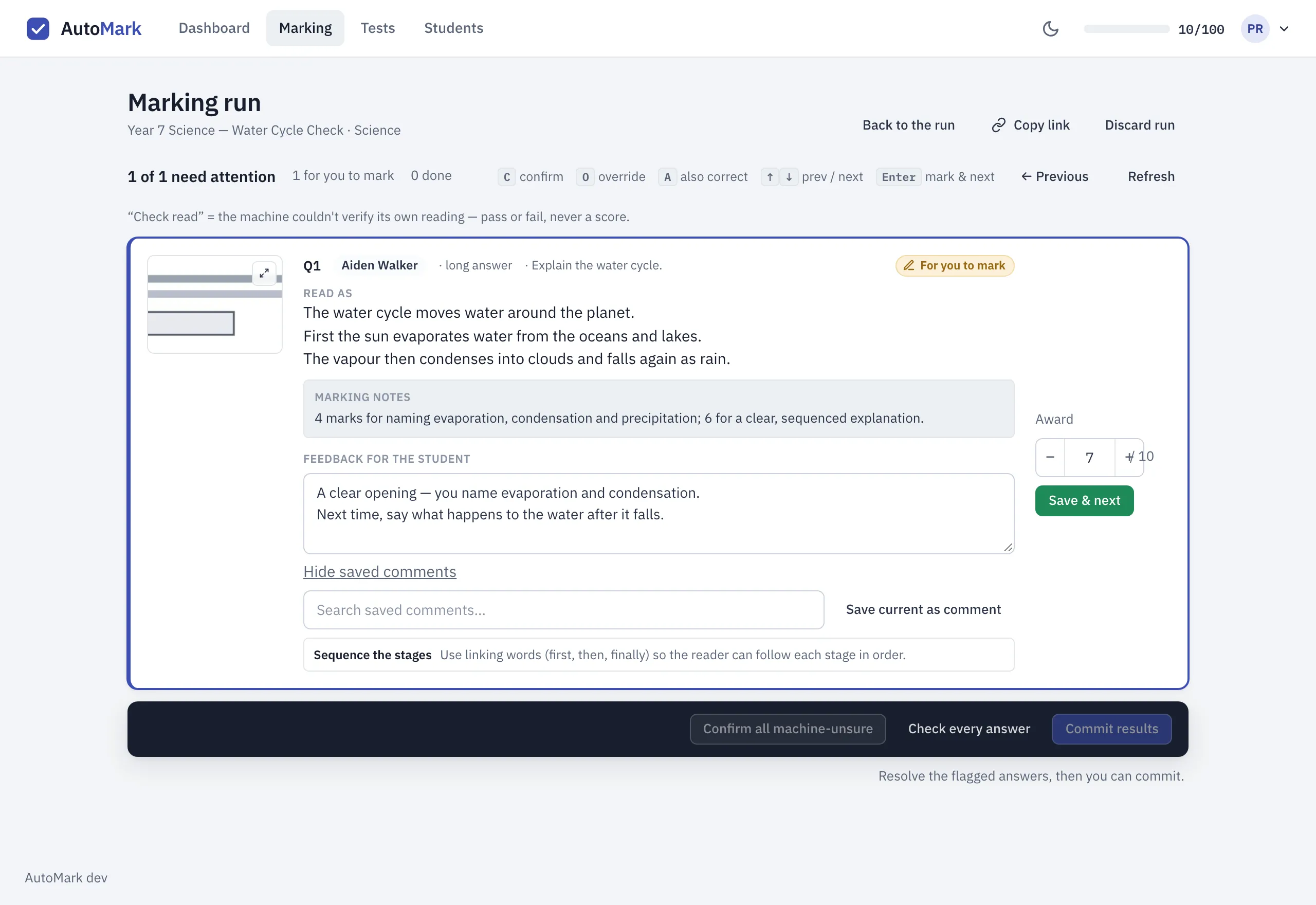
Section titled “Marking long answers”After a marking run, the other questions on the test are marked as usual. Each long answer lands in your review queue as For you to mark. The queue keeps the two kinds of work apart: the header tells you how many answers are for you to mark and how many are other answers to check.
Each long-answer card shows:
- a crop of the student’s paper, which you can enlarge;
- Read as: AutoMarkHQ’s transcript of the handwriting, with the student’s line breaks kept;
- your marking notes for the question;
- an Award box, where you type the mark out of the question’s total.
The transcript is a reading, not a copy. If it and the ink disagree, trust the crop. AutoMarkHQ can, for example, tidy a misspelled word into the correct spelling. Read the crop whenever spelling or exact wording matters.
Type the mark and choose Save & next, or press Enter. The card changes to
Marked by you and the next answer opens. Halves are allowed. A blank long answer still
comes to you, so you can confirm the zero yourself.
Changed your mind? A marked card can be changed any time before you commit.
Writing feedback
Section titled “Writing feedback”Under the marking notes is Feedback for the student. Write as much as you like;
line breaks are kept. Feedback saves as you type, so moving to another card or reloading
the page doesn’t lose it. Press ⌘ Enter (or Ctrl Enter) to save the mark and feedback
together and move on. A plain Enter in the feedback box starts a new line.
To remove feedback, clear the box.
Saved comments
Section titled “Saved comments”If you find yourself writing the same comment for many students, save it once. Open Saved comments under the feedback box:
- Save current as comment keeps whatever is in the feedback box, with an optional label so you can find it again;
- the search box finds a saved comment by its label or wording;
- clicking a saved comment inserts it where your cursor is, so you can add to it.
Committing the run
Section titled “Committing the run”Commit results stays locked until every long answer has a mark from you. Zero counts as a mark. Confirm all machine-unsure doesn’t include long answers. It only confirms readings AutoMarkHQ was unsure of, and a long answer was never AutoMarkHQ’s to decide.
Nothing reaches a student’s record until you commit. The commit step and the rest of the queue are covered in The review queue.
Getting feedback out
Section titled “Getting feedback out”Feedback is saved with each student’s answer. To take it out of AutoMarkHQ, use Export CSV on the marking run or on a student’s record. Each long answer’s feedback is in its own column, with line breaks kept. The markbook CSV is a one-row-per-student summary, so it doesn’t include feedback.