Question types
Every question in a test has a type, an answer key and a number of marks. The type tells AutoMarkHQ what kind of answer to look for on the paper and how to compare it with your key. Five shapes cover most tests: multiple choice, true/false, numeric, short answer, and a question split into sub-parts.
AutoMarkHQ reads each answer and checks it against your key. It shows you the answers it isn’t sure about beside a crop of the student’s paper, and while Review wrong answers is on in Settings it shows you every answer it marked wrong as well. Nothing is recorded against a student until you commit the run.
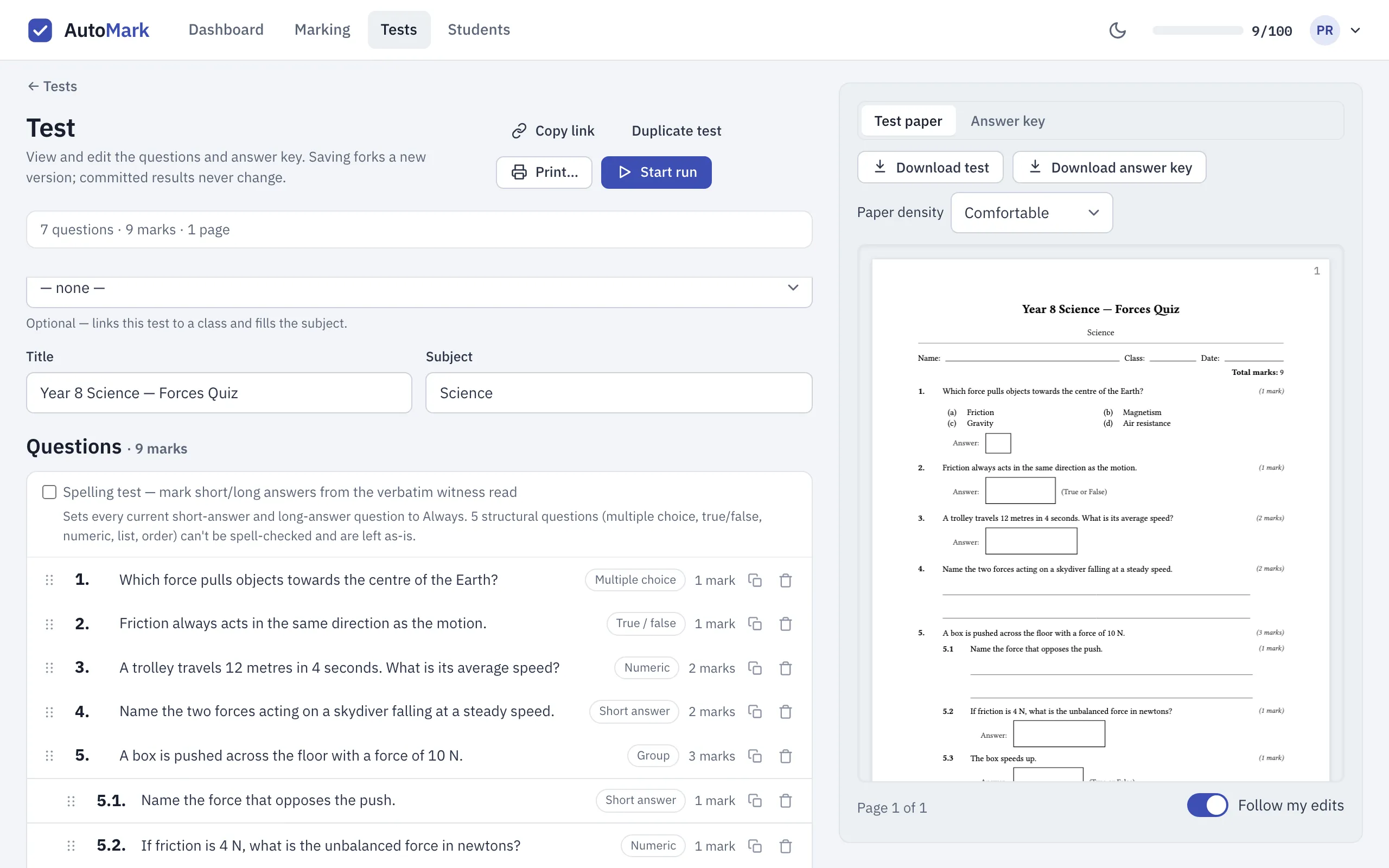
Choosing a type
Section titled “Choosing a type”Select a question to open it, then pick its type from the Type list. The type label shows on each row of the editor, so you can check the whole test at a glance. The paper preview beside the editor shows how each question will print.
Multiple choice
Section titled “Multiple choice”Choose Add answer choices to write the options the student will see (between two and eight), then tick the circle beside the correct one. That tick is your answer key.
The student writes the letter of their choice in the box beside the question. If you print more than one version of a test with the options in a different order, AutoMarkHQ still marks each paper against the right option, because your key is the option itself rather than its letter.
If a student writes more than one letter, AutoMarkHQ doesn’t pick between them. The answer comes to you to decide.
True / false
Section titled “True / false”Pick which answer is correct. AutoMarkHQ accepts the student writing true or false, T or F, or yes or no. Anything else comes to you to check rather than being marked wrong.
Numeric
Section titled “Numeric”Type the answer as a number. You can include a unit such as 5 cm or a percentage sign, a
fraction (3/4), or an equation form such as x = 107. AutoMarkHQ marks the value. A key that
isn’t a single number, such as two values or a word, can’t be saved on a numeric question; use a
short answer instead.
A few things worth knowing:
- Close enough counts. An answer within the question’s tolerance is marked correct. Your
account starts with a tolerance of 0.5, so a key of
7also accepts anything from 6.5 to 7.5. Set Default numeric tolerance in Settings to 0 if answers must match your key exactly. The setting applies to numeric questions you add after changing it. Questions you’ve already added keep the tolerance they were created with, even when you edit and save the test again. - Units. If your key has a unit, the student’s answer is read with its unit. The same value in the same unit is correct; a different unit is marked wrong. If the value matches but AutoMarkHQ can’t see a unit, the answer comes to you with the note Unit not read — check the crop.
- Fractions are values. On a key of
3/4, the answers3/4,6/8and0.75are all correct. The tolerance applies to fractions too, so with a tolerance of 0.5 a key of3/4also accepts1/2and1. If you want the fraction written in one particular form, use a short answer instead. - Commas. A comma counts as a thousands separator only when exactly three digits follow it,
so
1,200is twelve hundred. An answer like3,4comes to you to check. - Numbers written as words. AutoMarkHQ reads a numeric answer as a number. If a student writes a number as a word, AutoMarkHQ may show it as the numeral and mark a matching value without flagging it. The crop shows what the student actually wrote. If writing the numeral matters, check those answers before you commit.
Short answer
Section titled “Short answer”Type the expected answer. AutoMarkHQ ignores capital letters, extra spaces and accents, and on longer answers it forgives a slip of a letter or so. On short words it is stricter, because a single letter can change the meaning.
Any short answer that doesn’t match your key comes to you rather than being marked wrong on its own. If the student’s answer is fair, Also correct in the review queue adds it to your key and re-marks the answers in this run you haven’t confirmed yet. Answers added this way show under the question in the editor as Also accept · added during marking, and you can remove any of them.
Open the question’s options to choose how the answer is compared:
- Accept the answer in any word order — useful for lists like carbon dioxide and water.
- Split into parts with a semicolon … and divide the marks — type the key as
gravity; air resistance, and each part earns an equal share of the marks. A paper with some of the parts comes to you with the partial mark proposed. - Require the parts in the order written — once the key is split, use this when the order matters.
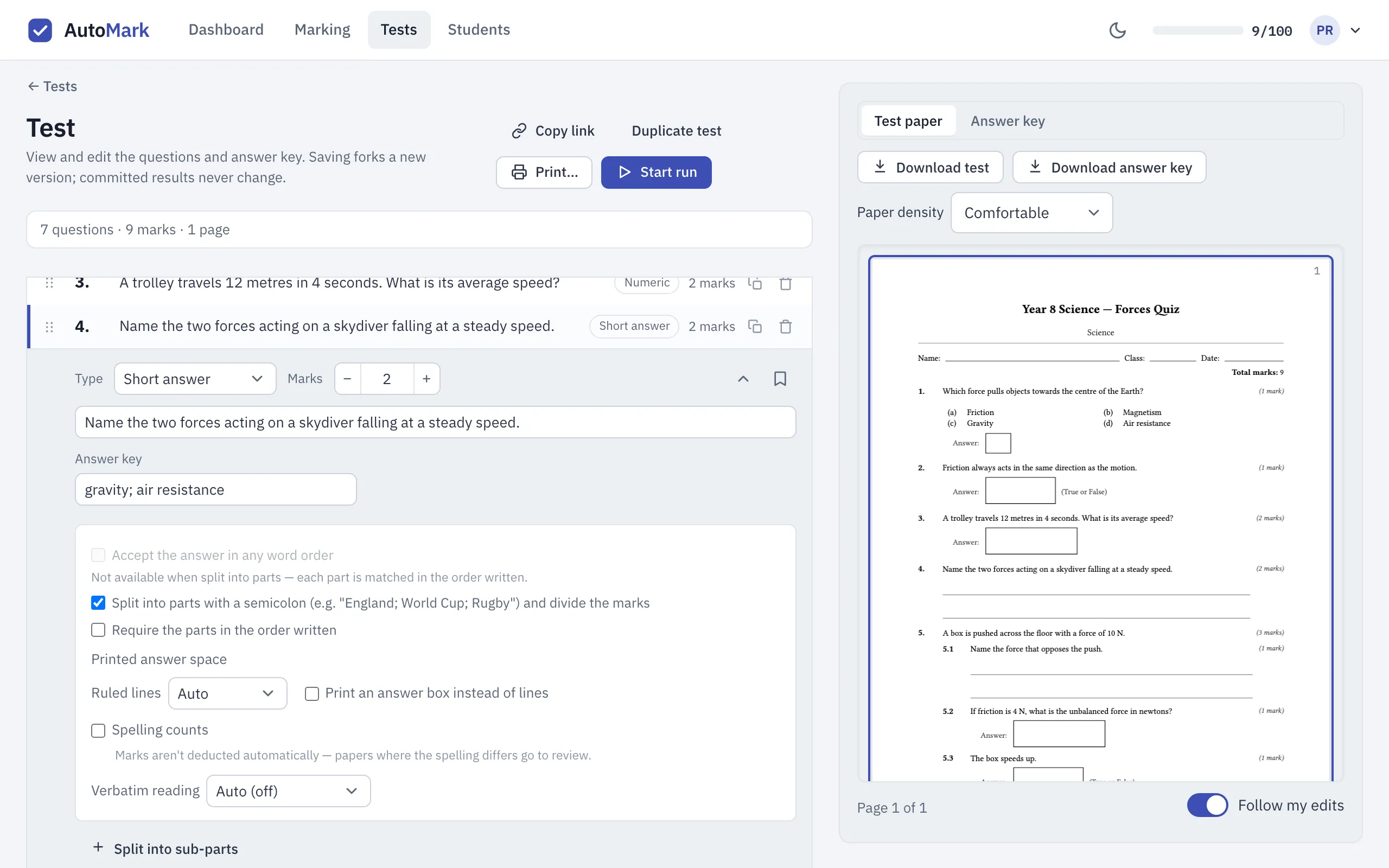
When AutoMarkHQ reads handwriting it can tidy a misspelled word into the correctly spelled one, so the text it shows may not be letter-for-letter what the student wrote. If spelling is part of what you’re marking, tick Spelling counts in the question’s options. Marks aren’t taken off automatically; papers where the spelling differs from your key come to you instead. Either way, the crop of the paper in review is the record of what the student wrote.
Questions with sub-parts
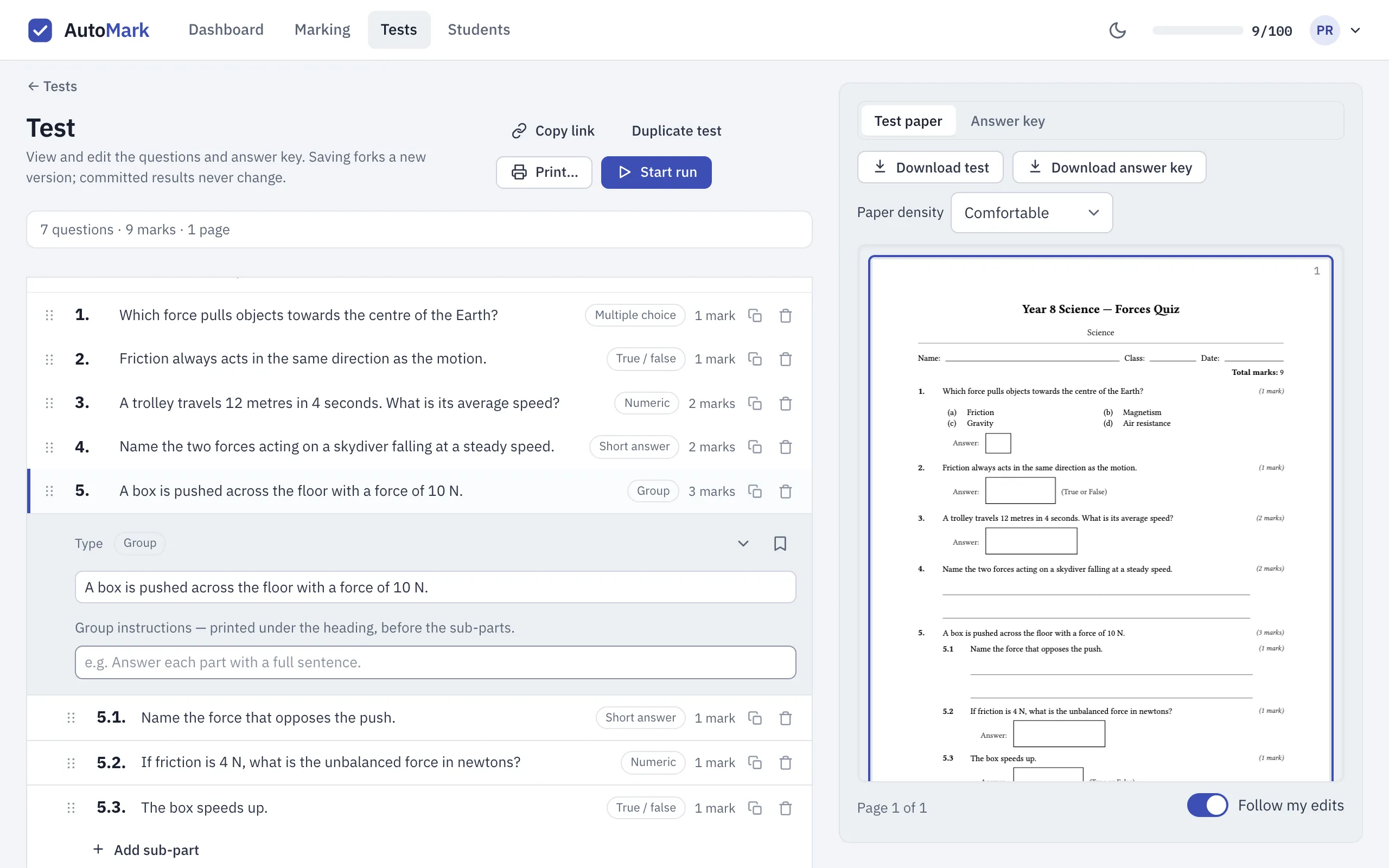
Section titled “Questions with sub-parts”Choose Split into sub-parts on a question to turn it into a group, then Add sub-part for each part. The question’s own text becomes the heading, and you can add group instructions that print beneath it. Each sub-part has its own type, key and marks, so one question can mix a short answer, a number and a true/false. The group’s total is the sum of its parts.
Each sub-part is marked on its own and, if it needs your eyes, gets its own card in the review queue. Sub-parts can’t be split again.
Changing a test after marking
Section titled “Changing a test after marking”Editing a test doesn’t change results you’ve already recorded, and a run that’s still open keeps marking against the key it started with. Your edit applies to the runs you start afterwards.
For checking what AutoMarkHQ flagged, see The review queue.