Table questions
A table question prints a grid on the paper. Some cells are filled in for the student and the rest are left empty for them to write in. Use it for things like completing a periodic table extract, filling in a conjugation chart or recording results in a table. AutoMarkHQ marks each cell the student writes in as an answer in its own right.
Set up a table
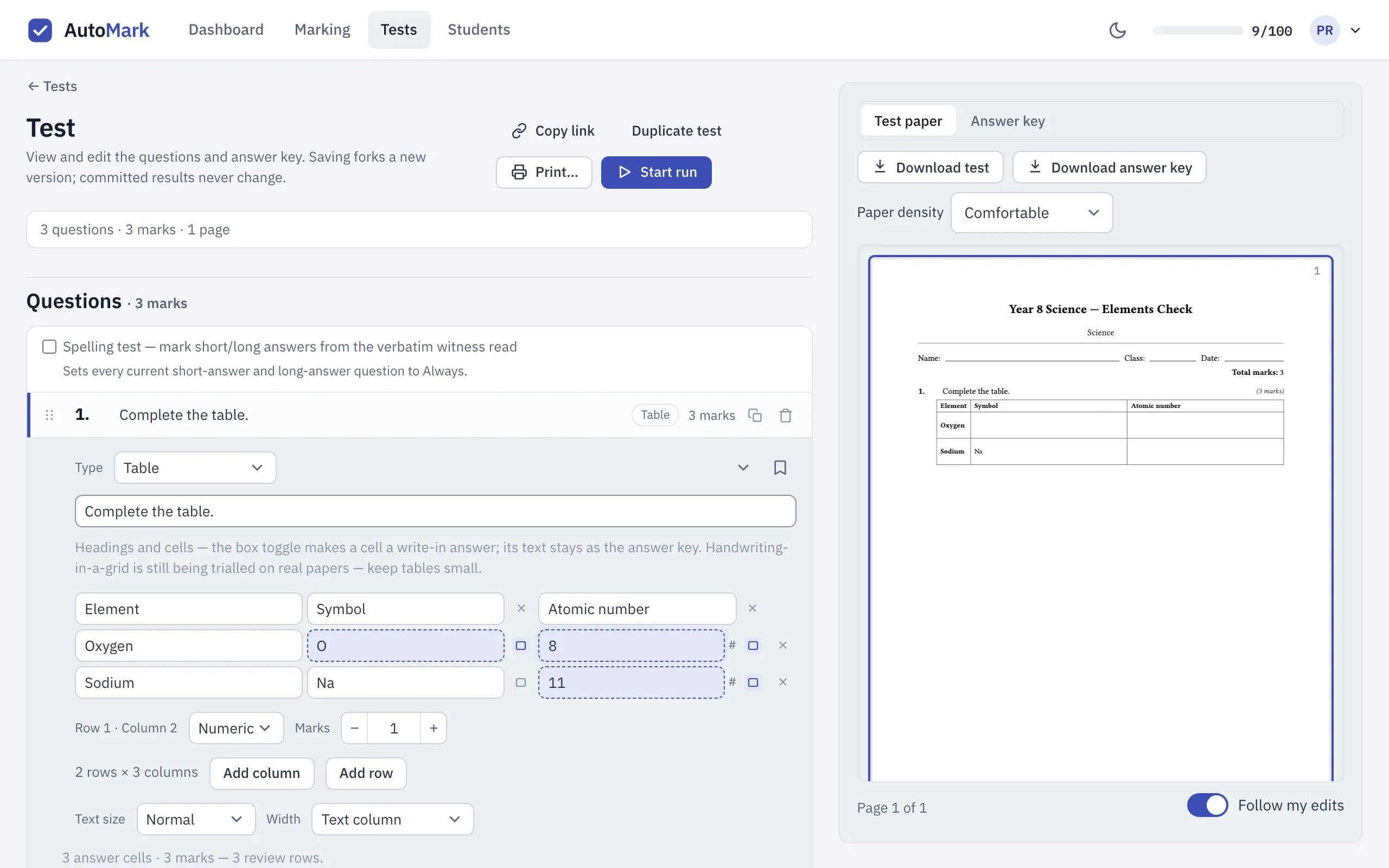
Section titled “Set up a table”- Add a question to your test and write the instruction, for example Complete the table.
- Choose Table from the question’s Type menu. Use the same menu to change it back to a single written answer later. If the table already has content, AutoMarkHQ asks you to confirm first.
- Name your columns. The first column holds the row labels. Use Add column and Add row to grow the grid, and the × beside a row or column to remove it.
- Fill in each cell. The small box beside a cell decides what it is:
- Printed for the student. The text you type appears on the paper.
- Left blank for the student to write in. The text you type is your answer key for that cell, and it doesn’t print on the student’s paper.
- Click into an answer cell to set it as Text or Numeric and choose its marks. Each answer cell starts at one mark.
Under the grid, AutoMarkHQ keeps a running count: how many answer cells the table has, what it’s worth, and how many separate answers that will be to check.
How it prints
Section titled “How it prints”On the student’s paper, printed cells show their text and answer cells are empty boxes to write in. Your answer key prints the same grid with each answer filled in, so you can check it against the paper before you print.
A wide table can be hard to fit on an A4 page. Under the grid you can set a smaller Text size, or set Width to run the table to the page margins. A table with six or more columns can be split into two tables that share the same row labels, and merged back if you change your mind. The editor warns you when a table has more columns than will print comfortably. You can still print it, but narrow cells leave students little room to write.
How it’s marked
Section titled “How it’s marked”AutoMarkHQ reads each answer cell on its own and marks it against that cell’s key. Text cells are marked the same way as short written answers. Numeric cells are marked the same way as number answers. Each cell is marked by itself. AutoMarkHQ doesn’t check rules that span several cells, such as “use each symbol only once”.
A table of twelve answer cells counts as twelve answers. Any of those AutoMarkHQ couldn’t verify, or that don’t match your key, comes to you in review as its own card (for numeric cells, a wrong answer comes to you while Review wrong answers is on in Settings). Keep tables small and focused. A long grid quickly adds up to a lot of separate answers to check.
Cells are for writing a value in. AutoMarkHQ can read a tick or a cross in an empty cell as a blank, which scores zero, so use a table for answers students write, not boxes they tick.
Checking table answers in review
Section titled “Checking table answers in review”Each review card for a table names the cell it came from. It shows the part number and the row and column, for example row “Oxygen”, column “Atomic number”. Your answer key is shown alongside it, so you can see which answer you’re looking at.
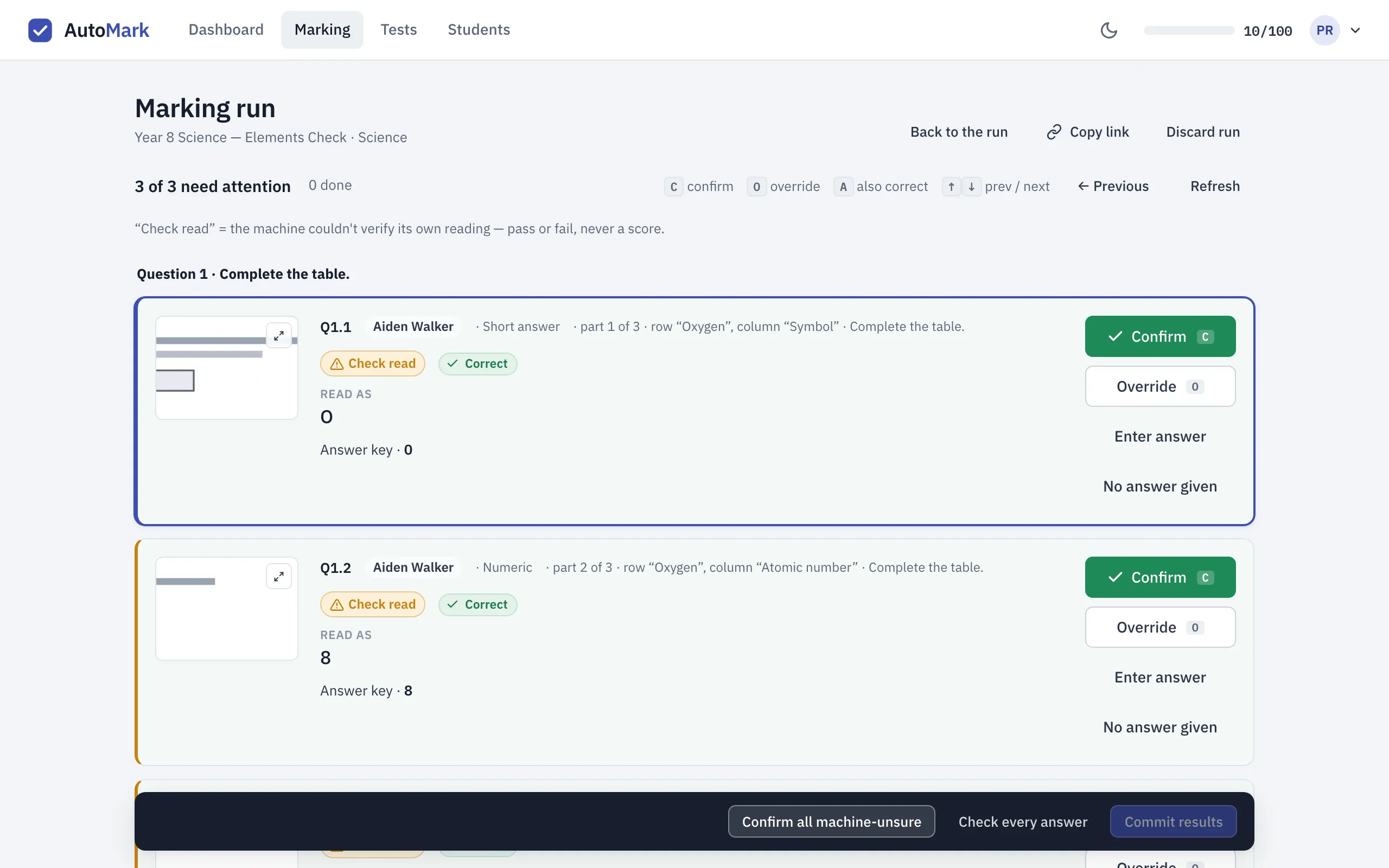
The crop beside each card normally shows only that cell. On some papers AutoMarkHQ can’t line the printed grid up cell by cell. When that happens the card says the crop is approximate and may show other rows. Check the answer against its row, or enlarge the crop and open the whole page. As with every question, the crop is the truth. If what AutoMarkHQ read differs from the ink, go by the ink.
When a cell is answered with a word, check the crop for spelling. AutoMarkHQ can read a misspelt word as the correctly spelled one, so a table that tests spelling needs your eyes on the paper.
Nothing from a table reaches a student’s record until you commit the run. The review queue explains confirming, overriding and committing, and question formats compares tables with the other kinds of question you can set.