Create a test from a scanned paper
Most tests already exist on paper. Rather than typing one in from the start, you can upload a scan or photo of it and AutoMarkHQ reads it into a draft test. You check the draft, fill in or confirm the answer key, and save. The saved test is the same as one you typed yourself: you can edit it, print it and mark with it in the same way.
Open Tests, choose New test, then Upload a blank paper.
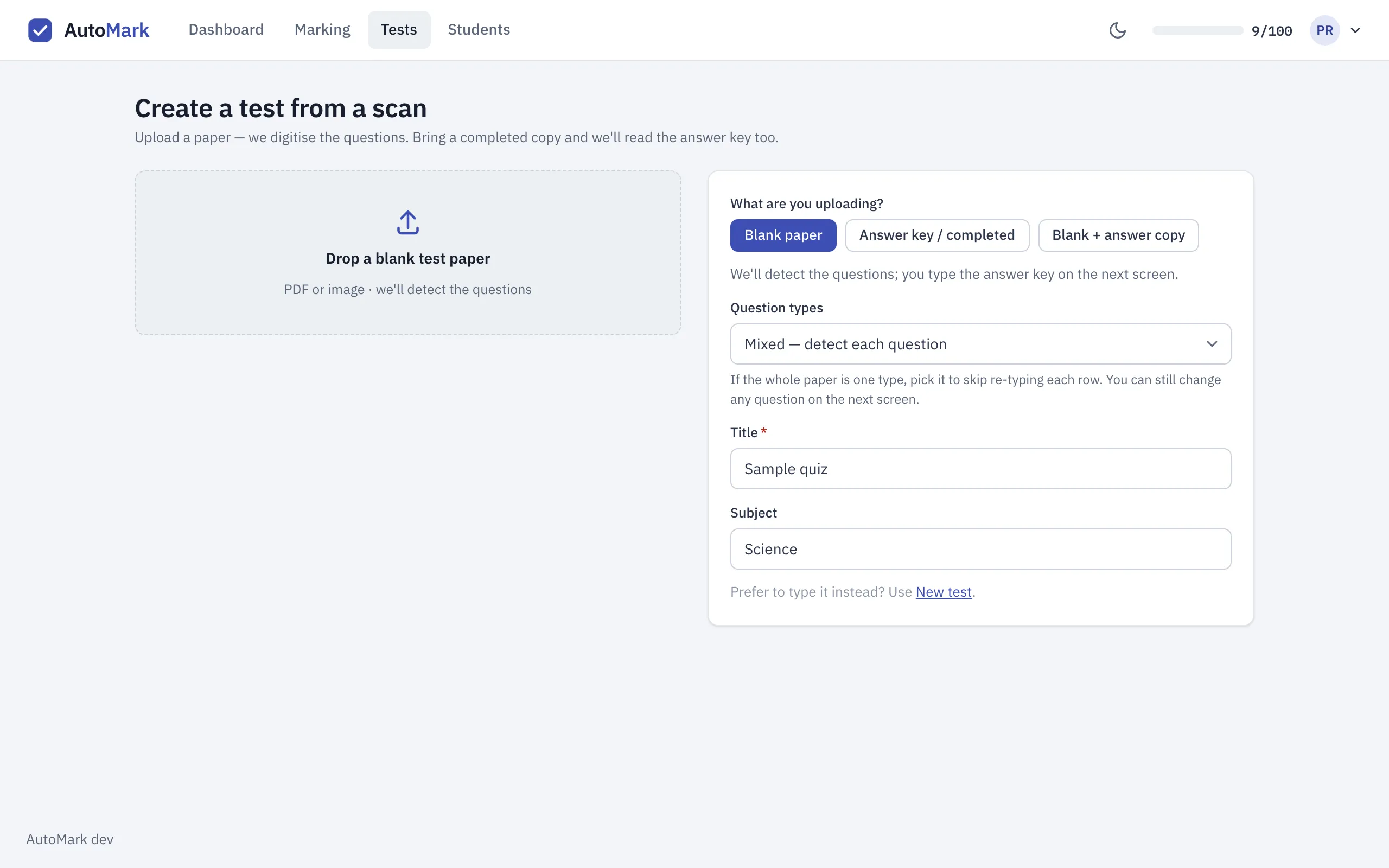
Choose what you’re uploading
Section titled “Choose what you’re uploading”- Blank paper — a clean copy of the test. AutoMarkHQ finds the questions; you type the answer key on the next screen. Use this when you have a clean copy: the key is exactly what you type, with no handwriting on it for anyone to misread.
- Answer key / completed — a copy with the answers already written or printed in. AutoMarkHQ finds the questions and reads the answers too, so you check the key instead of typing it.
- Blank + answer copy — two files: the blank paper and a filled-in one. The questions come from the blank copy and the answers from the filled one. This works best when answers are written on the same line as the question, such as a vocabulary list.
If every question on the paper is the same kind — all multiple choice, say — set Question types to match, so you don’t have to change each question one at a time. You can still change any question afterwards.
Upload a PDF or an image. A flat, straight, full-page scan gives AutoMarkHQ the best chance of finding every question.
Check the draft
Section titled “Check the draft”AutoMarkHQ shows each question it found next to the scan, with its wording, its type, the marks it’s worth and the answer key. Treat the whole screen as a draft: everything on it can be changed before you save.
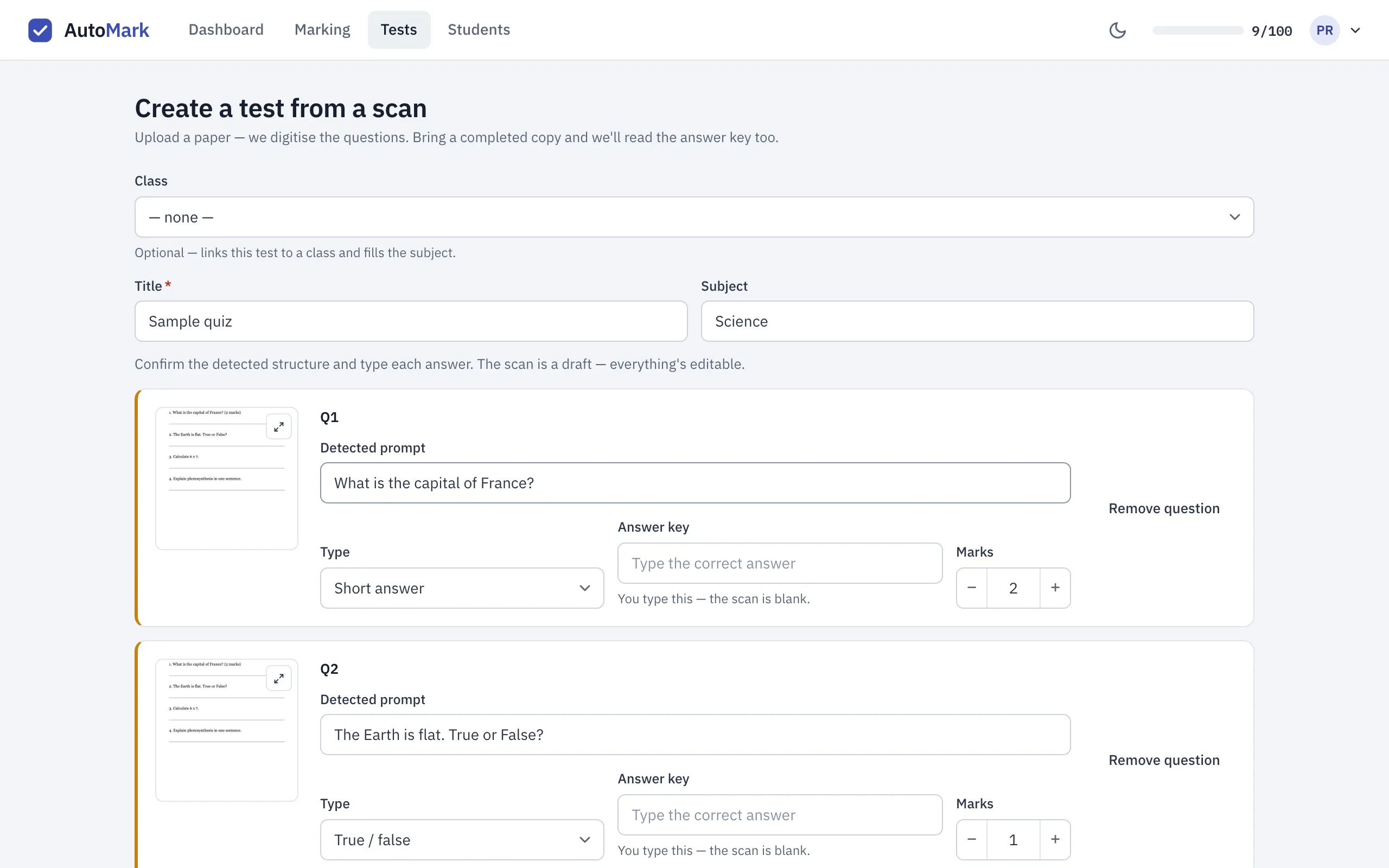
- Fix anything it got wrong. Correct the wording, change the type or adjust the marks. If AutoMarkHQ mistook something for a question, such as a worked example or a line of instructions, use Remove question. If it missed one, use Add question.
- Questions with parts. Use Use sub-sections to turn the list into questions with parts (Question 1 with parts a to d, for example). That editor also offers the full range of question formats.
- Fill in the key. For a blank paper, type each correct answer.
Answers AutoMarkHQ read from your paper
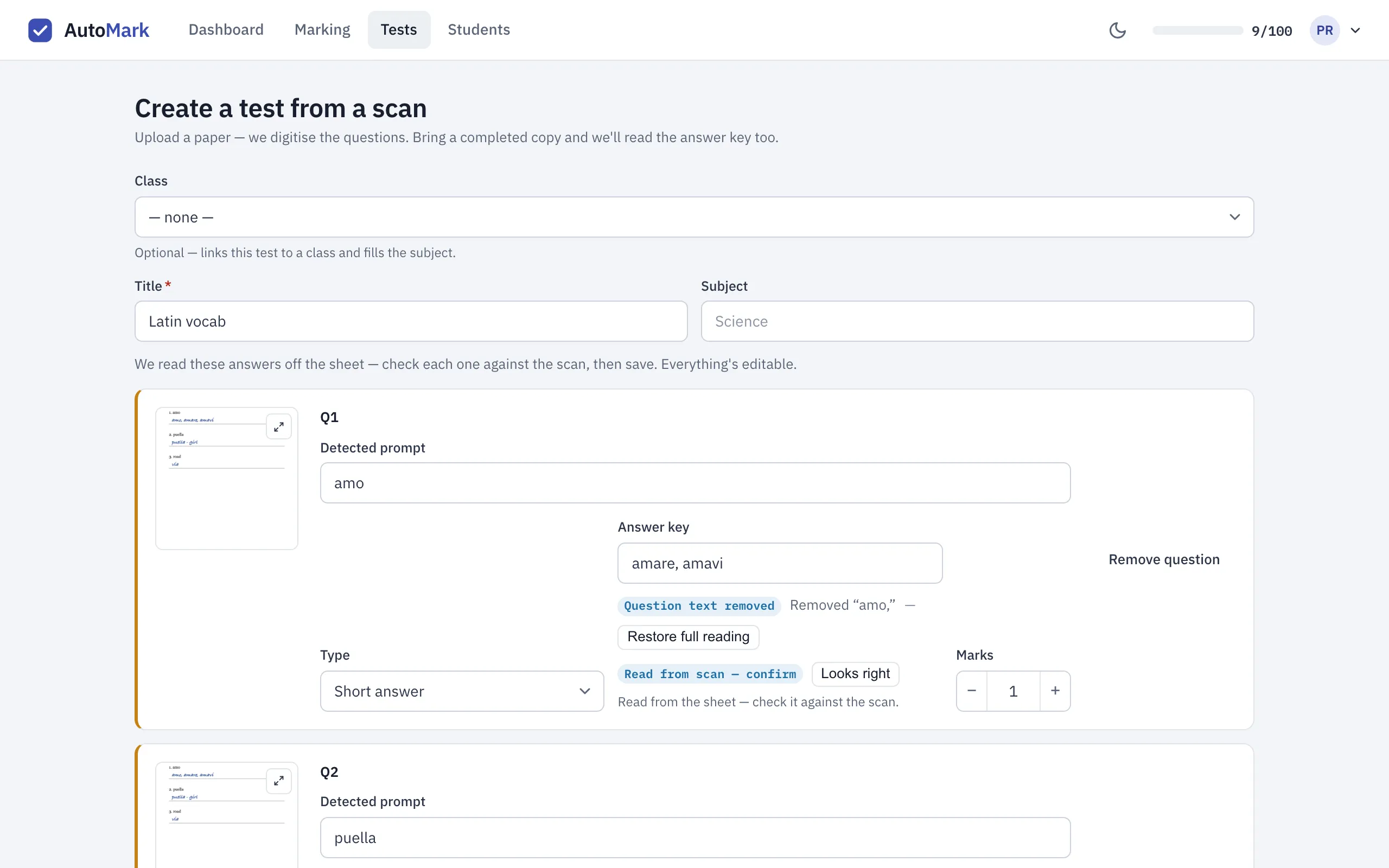
Section titled “Answers AutoMarkHQ read from your paper”When you upload a completed copy, AutoMarkHQ fills in the key from what it read. Short written answers it read are labelled Read from scan — confirm until you choose Looks right or change them. Multiple-choice, true/false and number answers it read aren’t labelled, and the label doesn’t stop you saving, so check every answer against the scan beside it before you save, not the text alone. AutoMarkHQ can occasionally read a handwritten word as a slightly different spelling, so if exact spelling matters, check the letters.
When AutoMarkHQ removed question wording
Section titled “When AutoMarkHQ removed question wording”With Blank + answer copy, a filled-in answer sometimes repeats the question in front of it: for example, “amo, amare, amavi” where the question is “amo”. AutoMarkHQ removes the repeated wording so the key holds only the answer. Each answer it changed is labelled Question text removed and shows what was taken out. If that wasn’t right, choose Restore full reading to put the original back.
If the two copies have a different number of questions, AutoMarkHQ warns you before you save. Check that they are the same test and edition. The questions come from the blank copy.
Check how the paper was read
Section titled “Check how the paper was read”For some scans, AutoMarkHQ shows How your paper was read: the page with a box around each section it found. Use Enlarge to look closely.
On a completed copy, Check parsing gives you a preview of how AutoMarkHQ reads each answer with your current questions. Each reading is shown as either verified or unverified, with no in-between. You can use a reading as the answer key. An unverified reading needs a second click to confirm, so a doubtful one can’t go into your key without you confirming it. Checking a completed copy uses credits each time you run it, and the screen tells you how much before you do. On a blank paper, Check parsing checks the structure only and uses no credits. If you uploaded a blank paper together with a completed copy, Check parsing reads answers and uses credits.
Save the test
Section titled “Save the test”Add a title, and optionally a subject or class, then choose Looks good — save test. The test joins your Tests list, ready to print and mark. The scan you uploaded is kept with the test for a limited time.
Until you save, your draft is kept in this browser while you stay signed in, so you can leave the page and come back. Signing out discards it; AutoMarkHQ warns you before it does. Start over discards it.
Credits
Section titled “Credits”Reading a scan uses credits according to the number of pages. A completed copy uses more than a blank one, because AutoMarkHQ reads the answers as well as the questions. If you don’t have enough credits, AutoMarkHQ tells you before it reads anything, and no credits are used. See Credits and billing.
Check the test in the editor and print it: Your first test.