Matching, Selection and Checklist questions
Matching, Selection and Checklist questions are all answered the same way on paper: the student writes one or more letters in a printed box. You author each one in the test editor by choosing it from the question’s Type list, and the print preview beside the editor shows the paper as students will see it.
AutoMarkHQ reads the letters, matches them against your answer key and proposes a mark. As with every question, nothing is recorded until you commit the run, and anything AutoMarkHQ wasn’t sure of comes to you in the review queue first.
Matching
Section titled “Matching”A matching question has items on the left and lettered options on the right. The student writes the letter of the matching option in the box beside each item.
Type the instructions, add your items under Items (left column) and your options under Options (right column), then choose each item’s correct match from the list beside it. You can have between two and eight options.
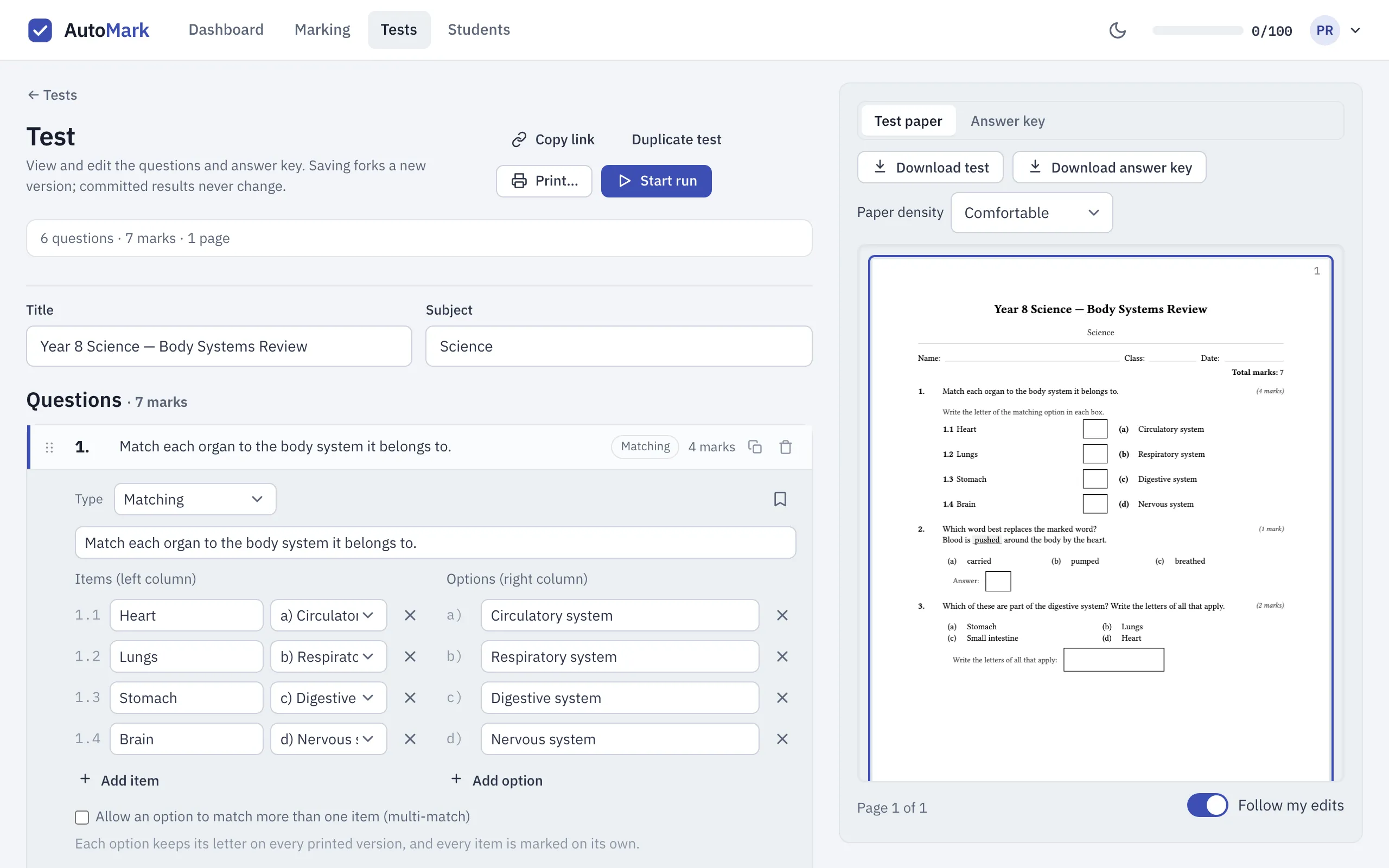
By default each option matches only one item, and the editor won’t save a key that uses an option twice. Tick Allow an option to match more than one item (multi-match) when one option is the answer for several items. Either way, you can include options that match no item.
Each item is marked on its own, so a student can get some matches right and others wrong. In the review queue each item that needs a look has its own card.
Selection
Section titled “Selection”A selection question prints a sentence with one word or phrase marked, and a lettered list of options underneath. The student writes the letter of the option that best replaces the marked word.
Write the sentence and wrap the word to be replaced in double braces:
Blood is {{pushed}} around the body by the heart. Then add the options and choose the correct
one.
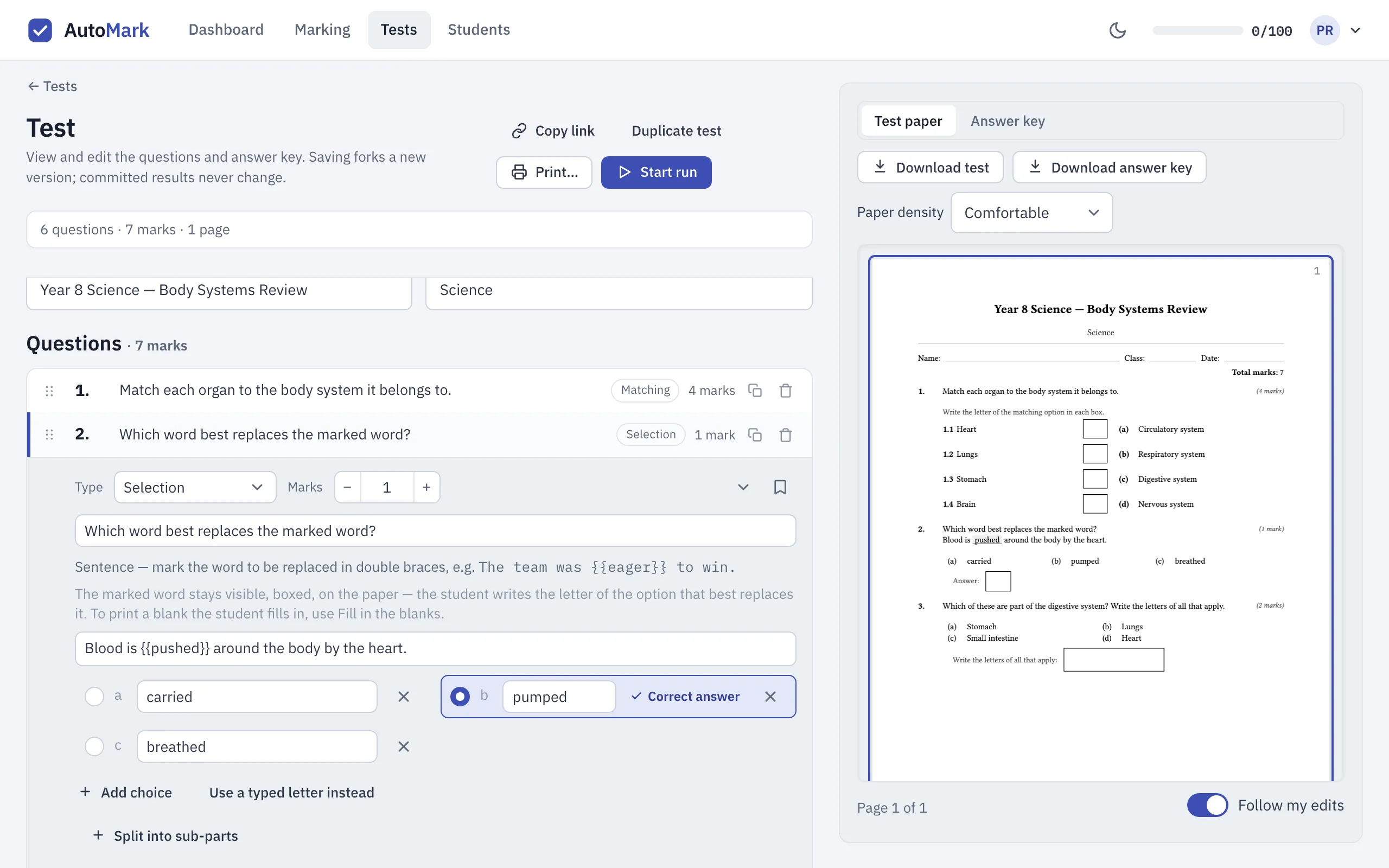
The marked word stays printed on the paper, shaded and underlined, so the student can see what they are replacing. It is not a blank. If you want a gap the student fills in with their own word, use the Fill in the blanks format instead. It uses the same double braces, but there the braced word is hidden from the student.
A selection question needs exactly one marked word or phrase, on a single line. The marked word can’t be the same as the correct option, because the paper would print the answer right above the list of options. Mark the word the correct option replaces.
Checklist
Section titled “Checklist”A checklist question lists lettered options, and the student writes the letters of every option that applies in one box. Tick each correct option in the editor.
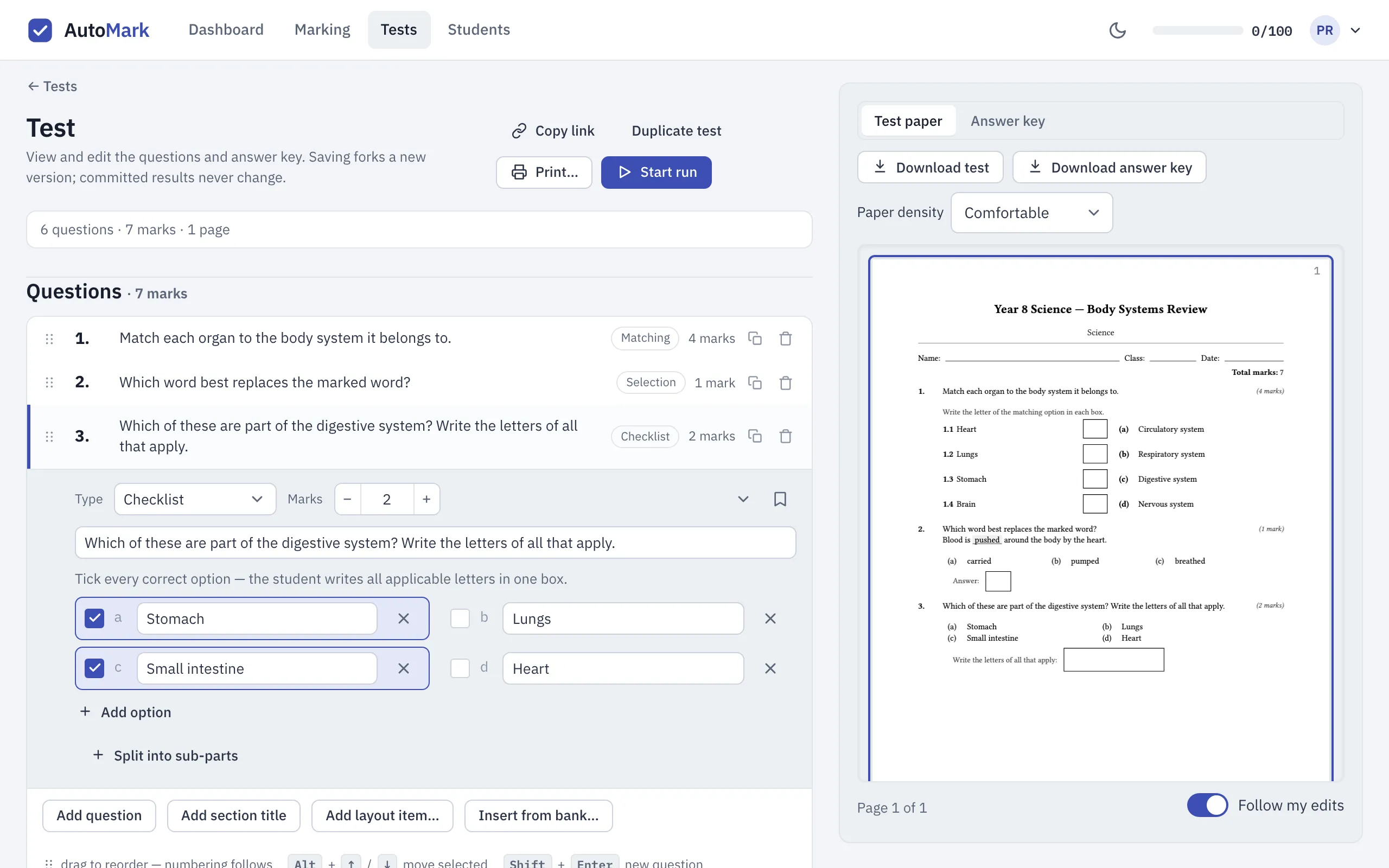
Students can write the letters in any order with spaces or commas between them, such as c a or a, c. Letters run together are marked normally when they’re in the printed order, such as ac. Handwriting that runs letters together can be read as a word, so when run-together letters are out of the printed order or repeat a letter (ca, bad), or spell one of a few short words such as ace, the answer comes to you to check instead of being marked. This is how AutoMarkHQ proposes a mark:
- Writing exactly the letters on your key earns full marks.
- Each correct letter earns its share of the marks, and each letter that isn’t on your key cancels out one correct letter. Writing every letter can’t earn full marks unless every option is correct, and the mark never goes below zero.
- Any answer that earns only part of the marks comes to you in the review queue.
- If AutoMarkHQ reads a letter that isn’t one of the printed options, the whole answer comes to you to check.
For example, on a two-mark question keyed a and c: writing a c earns 2 marks, a earns 1, and a b earns nothing, because the wrong letter cancels the right one.
Before you print
Section titled “Before you print”- Read the preview. Check that each letter box sits where you expect and that the instructions tell students to write letters, not circle or tick.
- Options keep their letters. If you print several versions of a test, these questions keep their options in the same order on every version, so a letter means the same option on every paper.
- Check the crop. A letter in a box is a small mark. In the review queue the crop of the student’s paper is what they actually wrote. If AutoMarkHQ’s reading beside it doesn’t match the ink, go by the crop.
See Question formats for help choosing between formats.