Instructions, sections and pictures on your paper
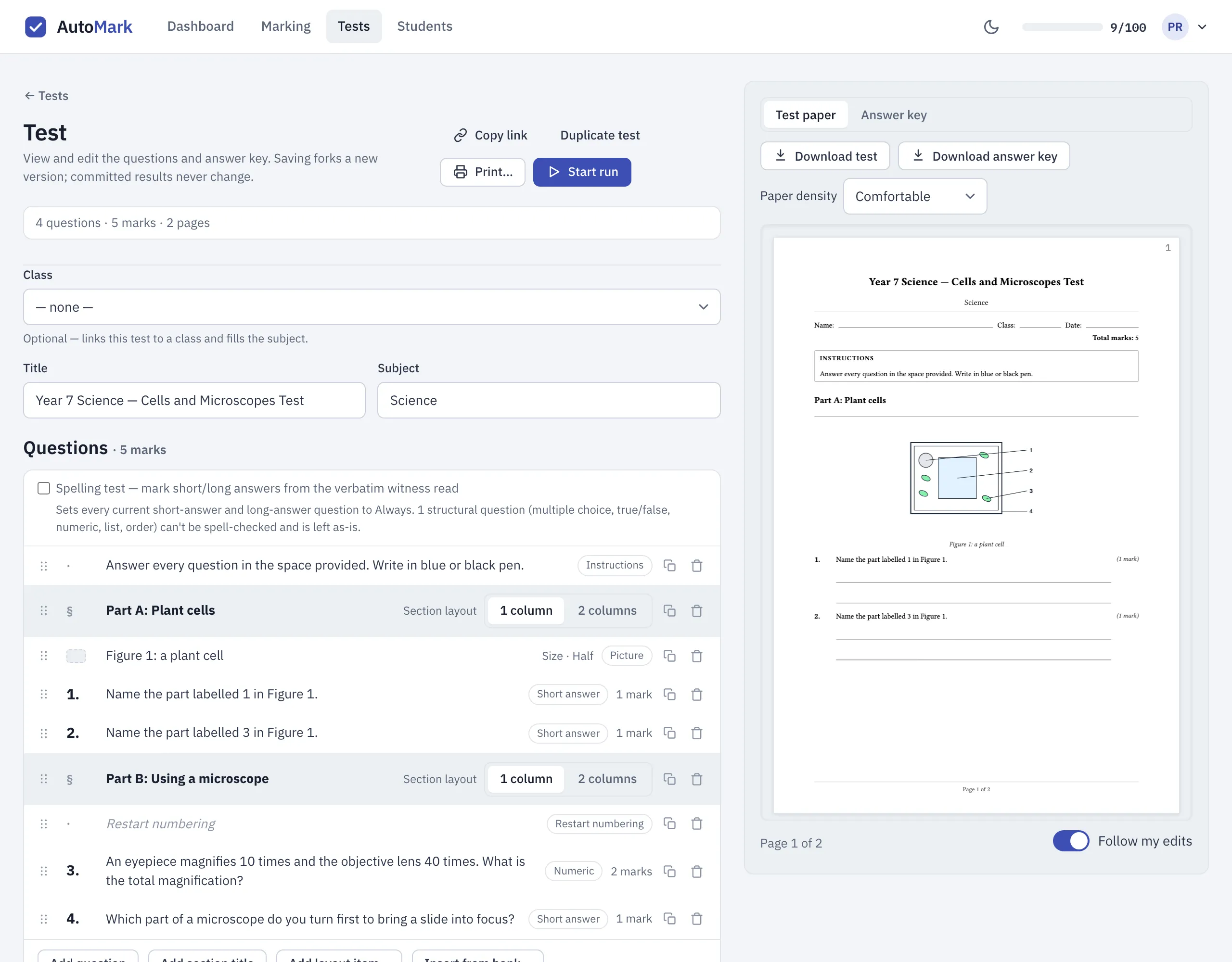
A test is more than its questions. In the test editor, you can place layout items between questions to shape the printed paper: instructions, section titles, text, pictures, spacing and page breaks. Layout items are never numbered and never marked. Section titles and numbering restarts also mark where each part of the test starts, which matters for matching answers to questions after a restart, and for printed versions (both covered below). The preview beside the editor shows the paper as it prints.
Adding an item
Section titled “Adding an item”At the bottom of the question list:
- Add section title adds a heading for a part of the test.
- Add layout item… offers everything else.
Both add the item at the end of the list. Drag it by its handle to where it belongs on the
paper, or select it and use Alt+↑/↓. To add an item in a particular spot, hover
between two rows and click the + that appears.
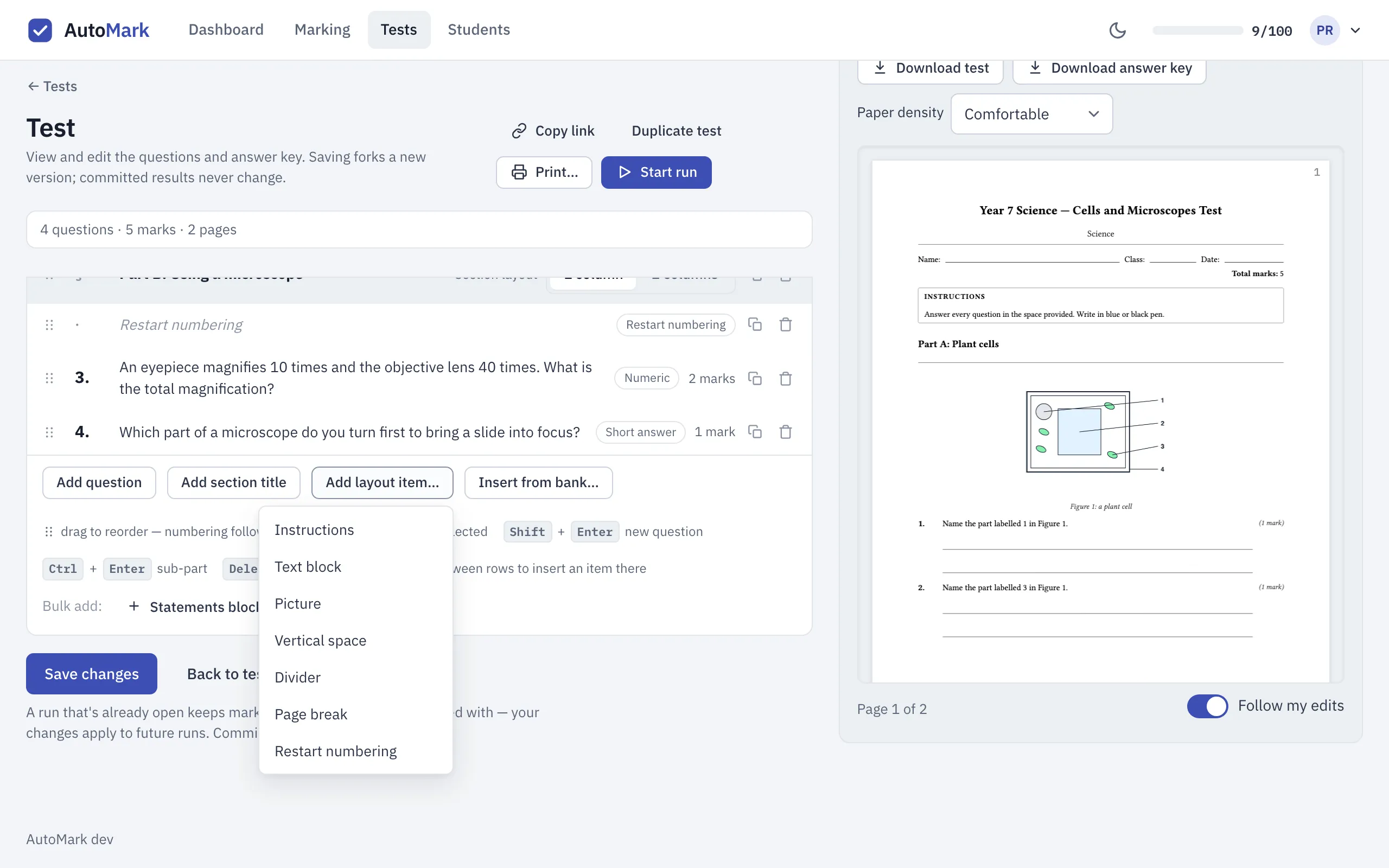
Click any layout row to edit it underneath, and use the buttons at the end of the row to duplicate or remove it.
What each item prints
Section titled “What each item prints”- Instructions prints in a box headed “Instructions”: directions at the top of the paper, or partway through it.
- Section title prints a heading with a rule beneath it, such as Part B: Algebra. The Section layout control on the row sets one or two columns for the questions in that section.
- Text block prints plain text, for a reading passage or a scenario that several questions refer to.
- Picture prints an image you upload, with an optional caption underneath.
- Vertical space leaves blank room on the page: small, medium or large.
- Divider prints a horizontal line.
- Page break starts the next item on a new page.
- Restart numbering makes the next question print as question 1 again. It prints nothing itself.
An instructions box, text block or section title with no text yet, or a picture with no image, shows a short note in the editor and isn’t saved or printed until you finish it. It won’t stop you saving the rest of the test.
A group question has its own Group instructions field. Open the group to find it. Those instructions print under the group’s heading, before its parts.
Pictures
Section titled “Pictures”Open a picture row and choose Upload image. Use a PNG or JPEG of up to 5 MB. After it uploads, you’ll see a thumbnail and can add a caption, which prints under the picture. Replace image swaps in a different one.
Size sets how wide the picture prints, as a share of the page’s text width: Quarter, Third, Half, Two-thirds or Full. A picture you haven’t sized prints at Two-thirds.
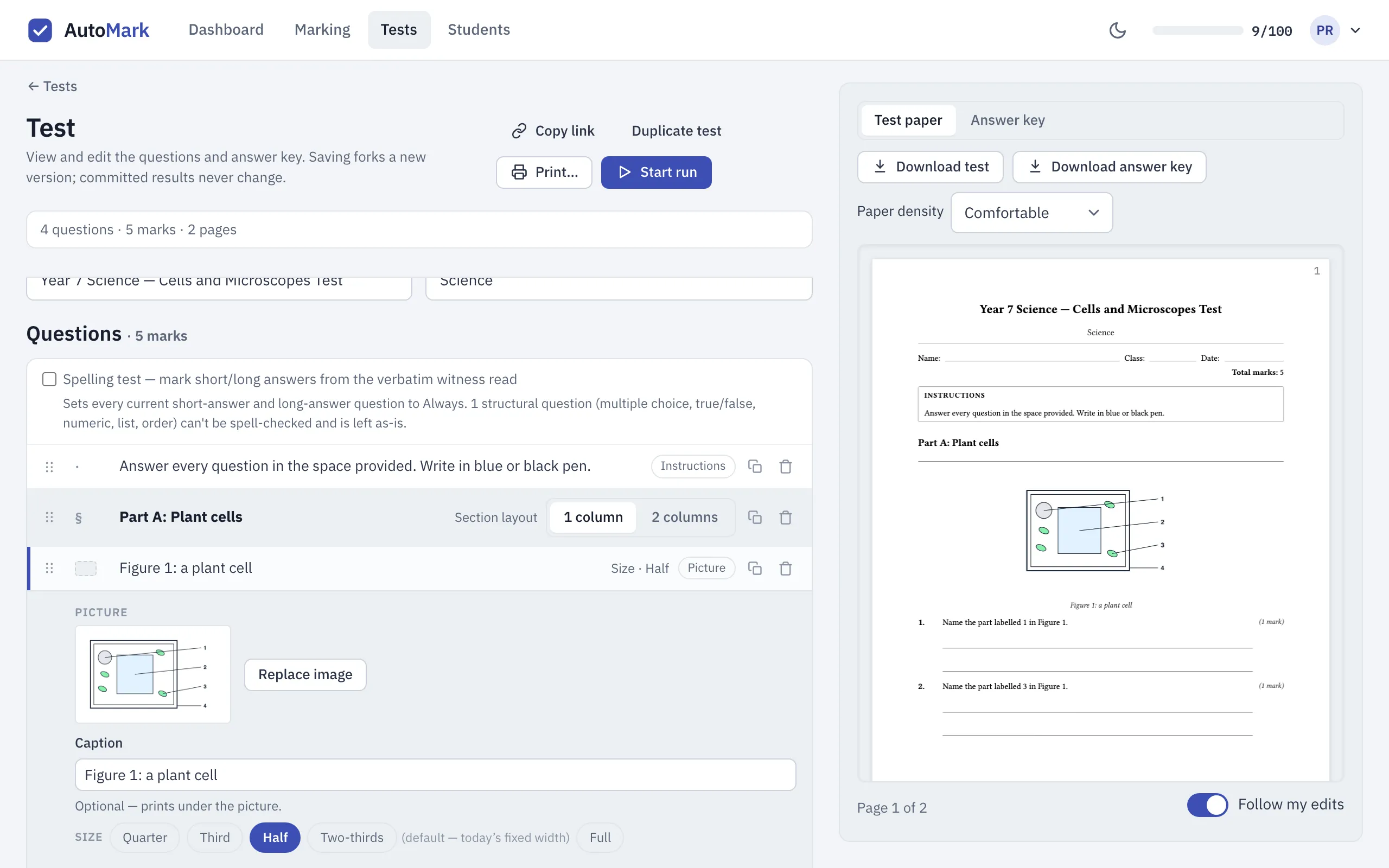
A picture is part of the paper, not a question. If you want students to label parts of a diagram and have those labels marked, use a diagram-labelling question instead.
Numbering
Section titled “Numbering”Questions print with numbers in order down the paper. Section titles don’t change the numbering.
Restart numbering does: the question after it prints as question 1. In the editor, questions keep counting straight through the whole test, so after a restart the editor might show question 3 where the paper prints question 1. The preview shows the printed numbers.
When a test restarts its numbering, two questions on the paper share a number, and AutoMarkHQ has to work out which one each answer belongs to. It uses the section titles on the paper to tell them apart, so give each part its own section title as well. On a test that restarts its numbering, check the crops for the repeated question numbers before you commit, and override any answer read against the wrong question. Nothing is recorded against a student until you commit the run.
Printed versions
Section titled “Printed versions”If you print several versions of a test, AutoMarkHQ shuffles questions only within a section, meaning between section titles and numbering restarts. Layout items stay where you put them, so every version keeps your sections, pictures and page breaks in place.
Adding, removing, renaming or moving a section title or numbering restart after you’ve generated versions changes which questions can swap places in those versions, and so their numbering. So does moving a question from one section into another. Copies you’ve already printed no longer match the test, so generate the versions again before printing more. When you drag a question across a section title or restart, the editor reminds you.