Student history, class results and CSV export
Once you commit a marking run, its marks are on your students’ records, and AutoMarkHQ gives you three ways to look at them: each student’s own page, the run’s results for the whole class, and CSV files you can take into a spreadsheet or markbook. A run you haven’t committed yet is still a draft, and its marks don’t appear on a student’s record or in an export until you do.
A student’s page
Section titled “A student’s page”Open a student from Students to see how they have gone across your tests.
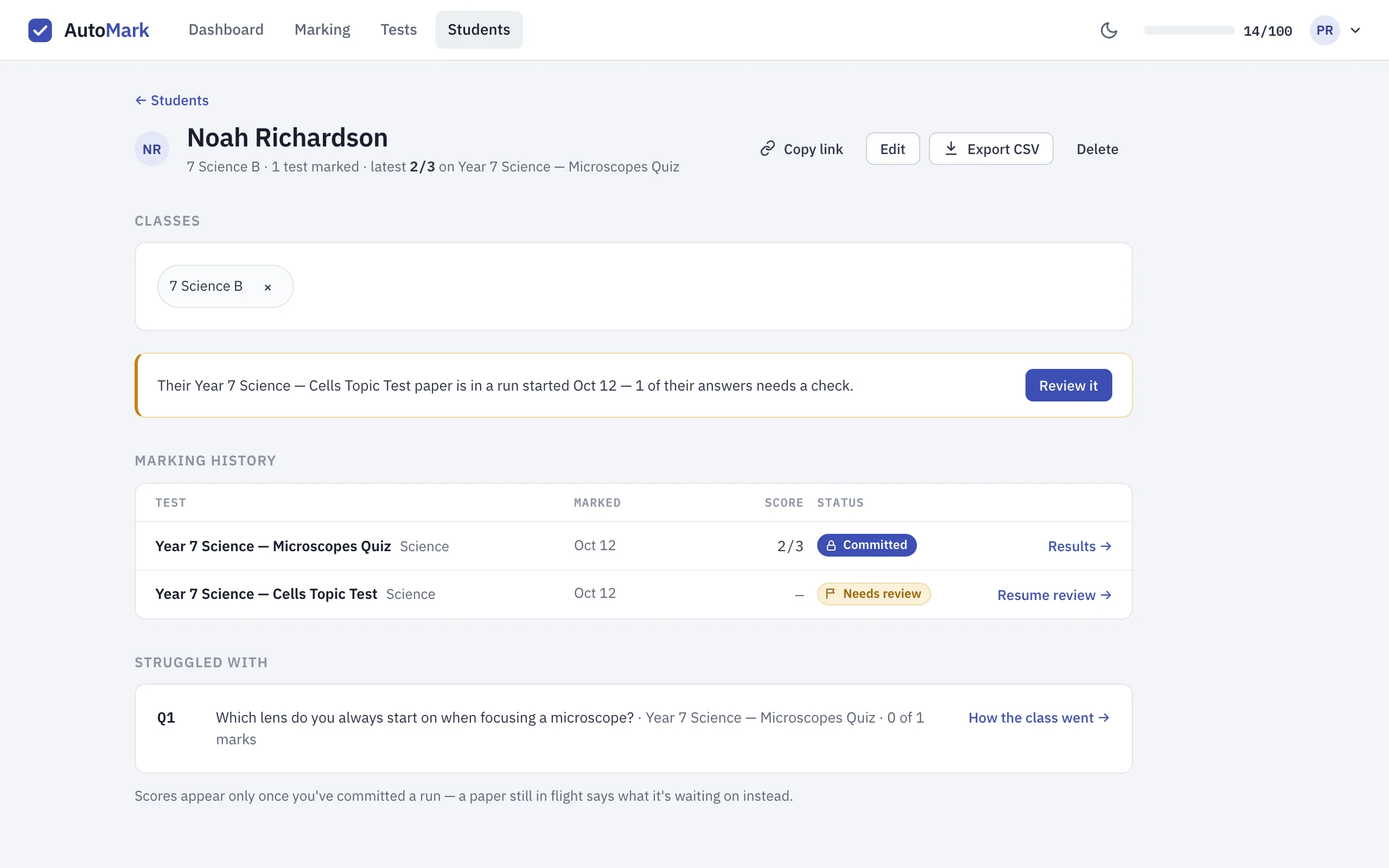
From the top down:
- The summary line says which class they’re in, how many tests you’ve recorded for them, and their latest score with the test it came from. There’s no average across tests: tests differ in content and difficulty, so a single blended number would say less than the scores themselves.
- Classes lists the classes they belong to. Remove one with its ×, or add them to another from the list.
- A paper still in a run. If the student has a paper in a run you haven’t committed, a highlighted note says which test it is and where it’s up to: how many of their answers are waiting for you to check, that nothing of theirs is flagged, that it hasn’t been marked yet, or that AutoMarkHQ couldn’t read the paper. The button takes you straight to it. No score is shown here, because the marks aren’t recorded until you commit.
- Marking history lists every run the student has a paper in, newest first. A recorded run shows the score and Results, which opens their answers for that test. A run still in progress shows a dash and its current status, with a link to pick it up where it is. Not read means AutoMarkHQ couldn’t read that paper, so nothing was recorded for it.
- Struggled with lists a few questions from their most recent recorded tests where they lost marks, weakest first. How the class went opens that run, so you can see whether the question tripped up one student or the whole class.
Export CSV at the top downloads every answer you’ve recorded for this student, across all their tests. Edit changes their name, student ID, notes and classes.
A run’s results
Section titled “A run’s results”Open a committed run from Marking, or from See results under Just marked on your dashboard.
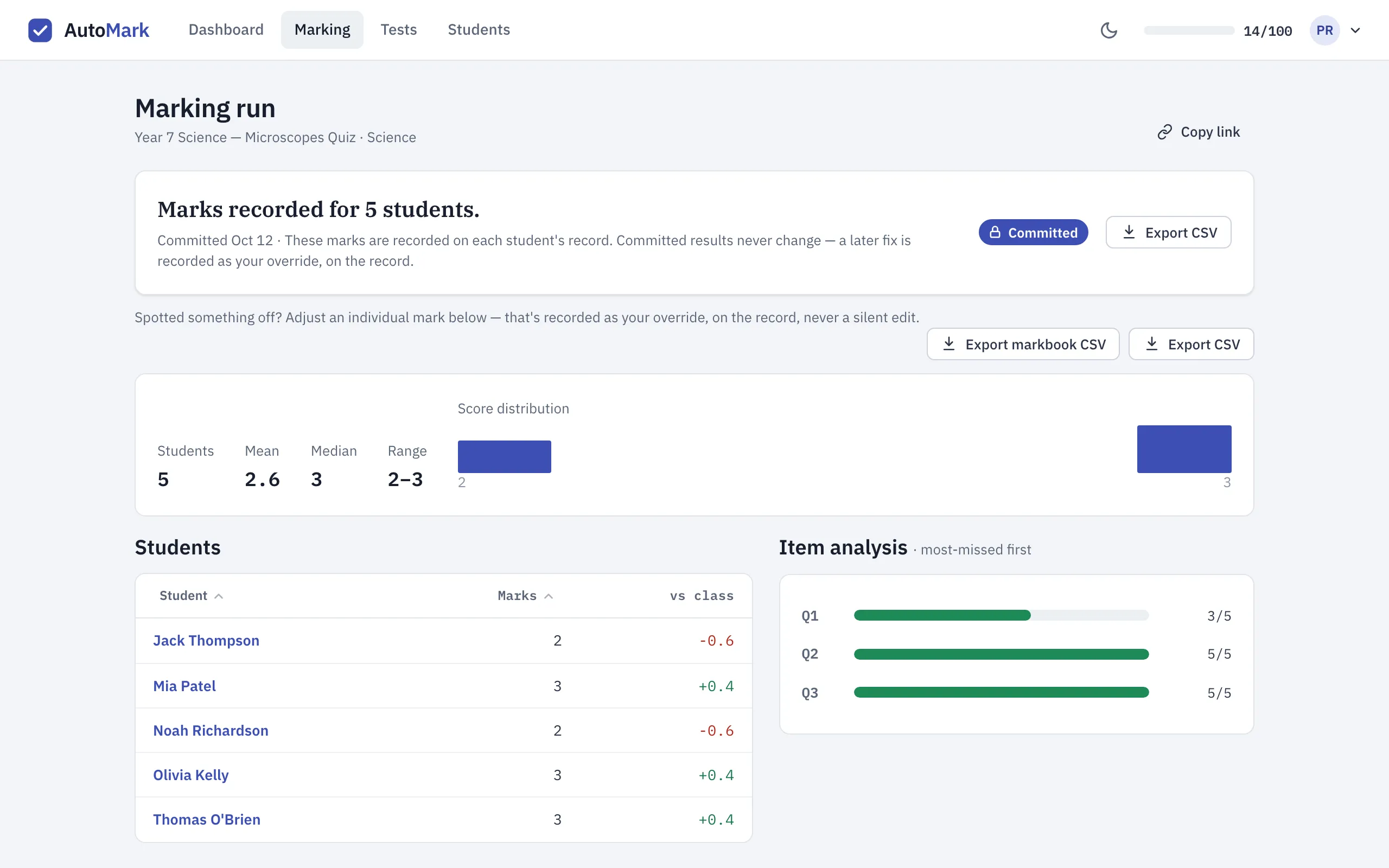
- Class figures — how many students were recorded, the mean, median and range of their marks, and a chart of how the scores are spread. A paper AutoMarkHQ couldn’t read is left out of these figures and has no mark recorded, rather than counting as a zero.
- Students — each student’s marks and how far above or below the class mean they are. Sort by name or marks, and click a name to open that student’s answers.
- Item analysis — each question with how many students got it right, most-missed first. The questions at the top may be worth revisiting with the class.
You don’t have to commit to see these figures. While you’re reviewing a run, the same class figures, student table and item analysis appear under Provisional results, showing what committing would record. Nothing there is on a student’s record until you commit.
Your dashboard keeps the most recent few runs you’ve recorded under Just marked, with the class average and how many students scored below half marks, and lists the questions those classes found hardest under They struggled with.
If a recorded mark turns out to be wrong, correct it from the student’s paper in the run. The correction is kept as your change on the record; see the review queue.
Which CSV to download
Section titled “Which CSV to download”| Button | Where | What you get |
|---|---|---|
| Export markbook CSV | a run’s results | One row per student: student ID, name, class, test, date, marks awarded, marks possible and the percentage. Made to open cleanly in Excel. |
| Export CSV (either button) | a run’s results | One row per answer for every student in the run: what AutoMarkHQ read, any correction you made, the verdict, the marks and your feedback. |
| Export CSV | a student’s page | One row per answer across every test you’ve recorded for that student. |
For most markbooks, Export markbook CSV is the one you want. Check the columns your markbook expects before importing; AutoMarkHQ doesn’t send marks to your school’s systems directly.
Two things you may notice in a file:
- Only committed marks are exported. A run you haven’t committed downloads with column headings and no rows.
- A cell that starts with a character a spreadsheet would treat as a formula, such as an equals or minus sign, has an apostrophe added in front so it’s shown as plain text instead of being run. Your data hasn’t changed.