Printed versions and personalised papers
Printed versions let neighbouring students sit the same test without sitting the same paper. AutoMarkHQ shuffles the order of the questions, the multiple-choice options, or both, prints a matching answer key for every version, and marks each paper against the version it was printed as. A personalised set goes one step further: one paper per student, with their name already printed on it.
Nothing about marking changes. Every answer is still checked against your key, flagged answers still come to you, and nothing is recorded until you commit the run.
Make a set of versions
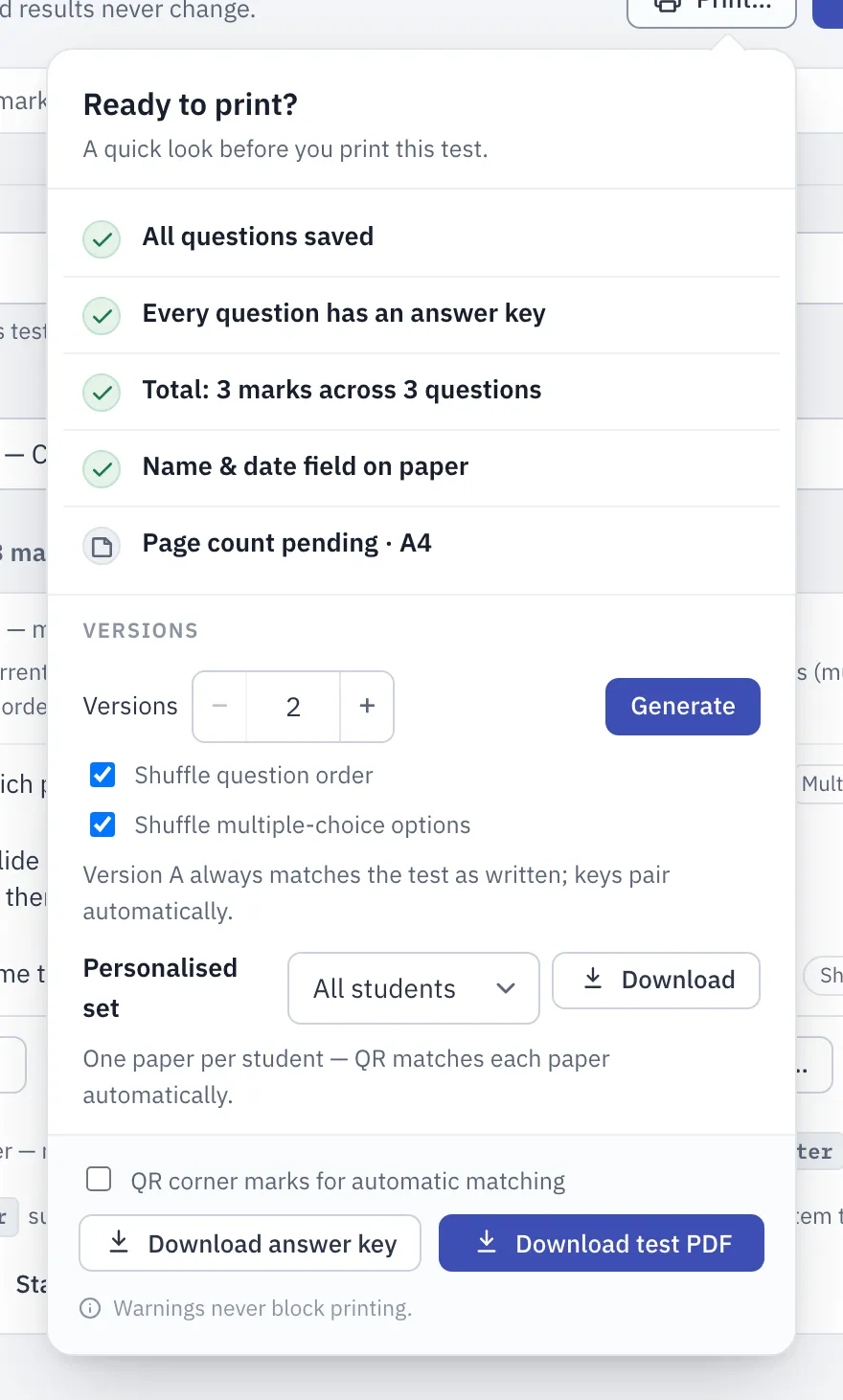
Section titled “Make a set of versions”Open a saved test and choose Print…. (A new test needs saving once before it can have versions.) The Versions section of the print window holds the controls:
- Versions: how many to make, from two to eight. They’re labelled A, B, C and so on.
- Shuffle question order: moves questions around within each section. A question never moves into a different section, a question with parts moves as one piece, and its parts stay in order.
- Shuffle multiple-choice options: reorders the options of each standalone multiple-choice question and relabels them, so the right letter differs between versions. A multiple-choice part inside a question with parts keeps its order.
Choose Generate. Version A is always the test exactly as you wrote it. The other versions are shuffled, and each gets its own answer key with the right letters for that version.
If a multiple-choice question only makes sense with its options in a fixed order (an “all of the above” question, for example), open that question’s options in the editor and tick Don’t scramble this question’s choices. Its options then stay in the same order on every version.
Print the versions
Section titled “Print the versions”Once the set exists, each version has its own Test and Key download. All versions puts every version in one PDF. You can order it In order: A then B…, or Alternating: A, B, A, B…, which is ready to hand out along a row of desks.
Version papers are printed from the saved test. If you’ve made changes in the editor, save them first.
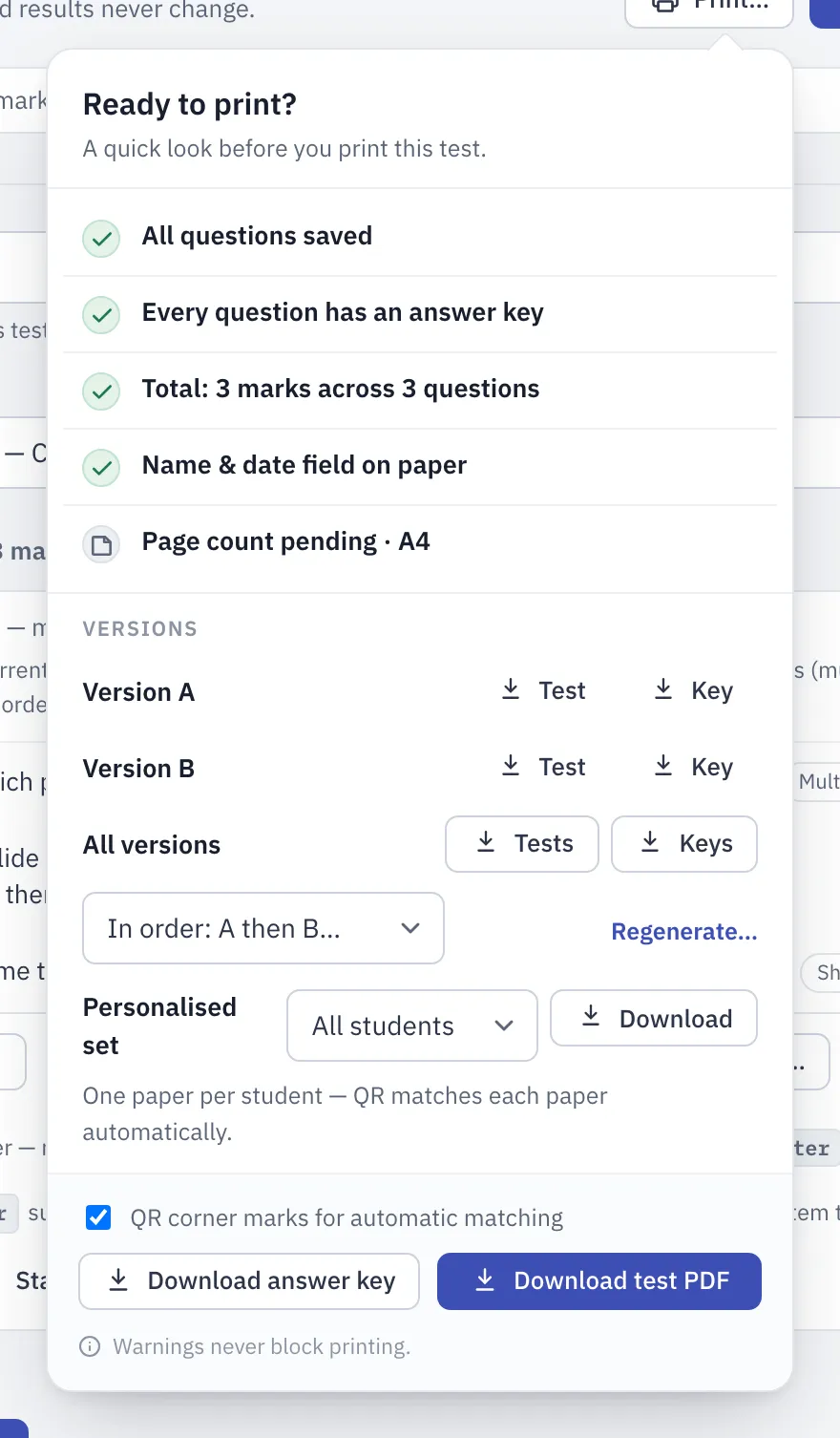
Leave QR corner marks for automatic matching ticked. It’s switched on for you once a test has versions. If you have unsaved changes, the box is greyed out until you save, but the version downloads still carry the marks, because they print the saved test. The marks tell AutoMarkHQ which test and version each scanned page belongs to, so AutoMarkHQ can match each paper to the right key without you sorting the pile.
Personalised papers
Section titled “Personalised papers”Under Personalised set, choose one class or all students and select Download. You get one paper per student, with their name printed on the name line. If the test has versions, they’re handed out in turn down the roster (A, B, A, B…). If it doesn’t, every student gets the test as written.
When the completed papers are scanned, AutoMarkHQ fills in each student from the paper itself. You can still change any match before you commit the run.
When AutoMarkHQ can’t read a paper’s QR marks
Section titled “When AutoMarkHQ can’t read a paper’s QR marks”When a paper has no QR marks, or AutoMarkHQ can’t read them, AutoMarkHQ marks it against the test as written. If that paper is actually a shuffled version, tell AutoMarkHQ which one:
- Before you run marking, the upload step asks Which printed version is each paper?. Pick the version beside each paper.
- After marking, before you commit, each paper on the Identify step has a Printed version list. It shows what the paper was marked against: Canonical means the test as written.
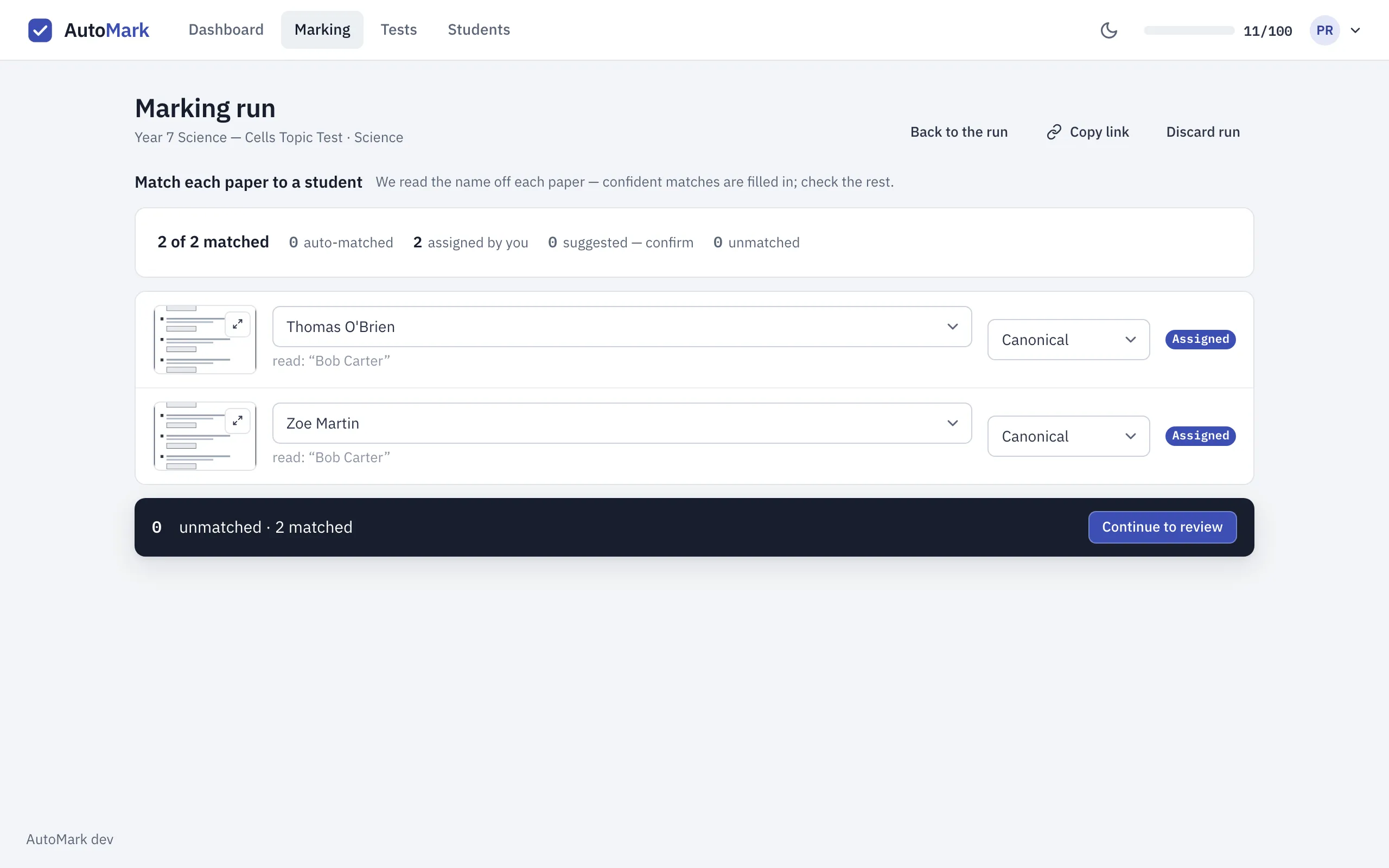
Changing the version on a paper that has already been marked re-marks that paper against the version you chose. AutoMarkHQ asks you to confirm first, because the re-mark clears any review decisions you’d already made for that paper and, as the confirmation says, “uses a marking credit for each page of this paper (N pages); spelling-test pages use three each”. Other papers in the run aren’t affected.
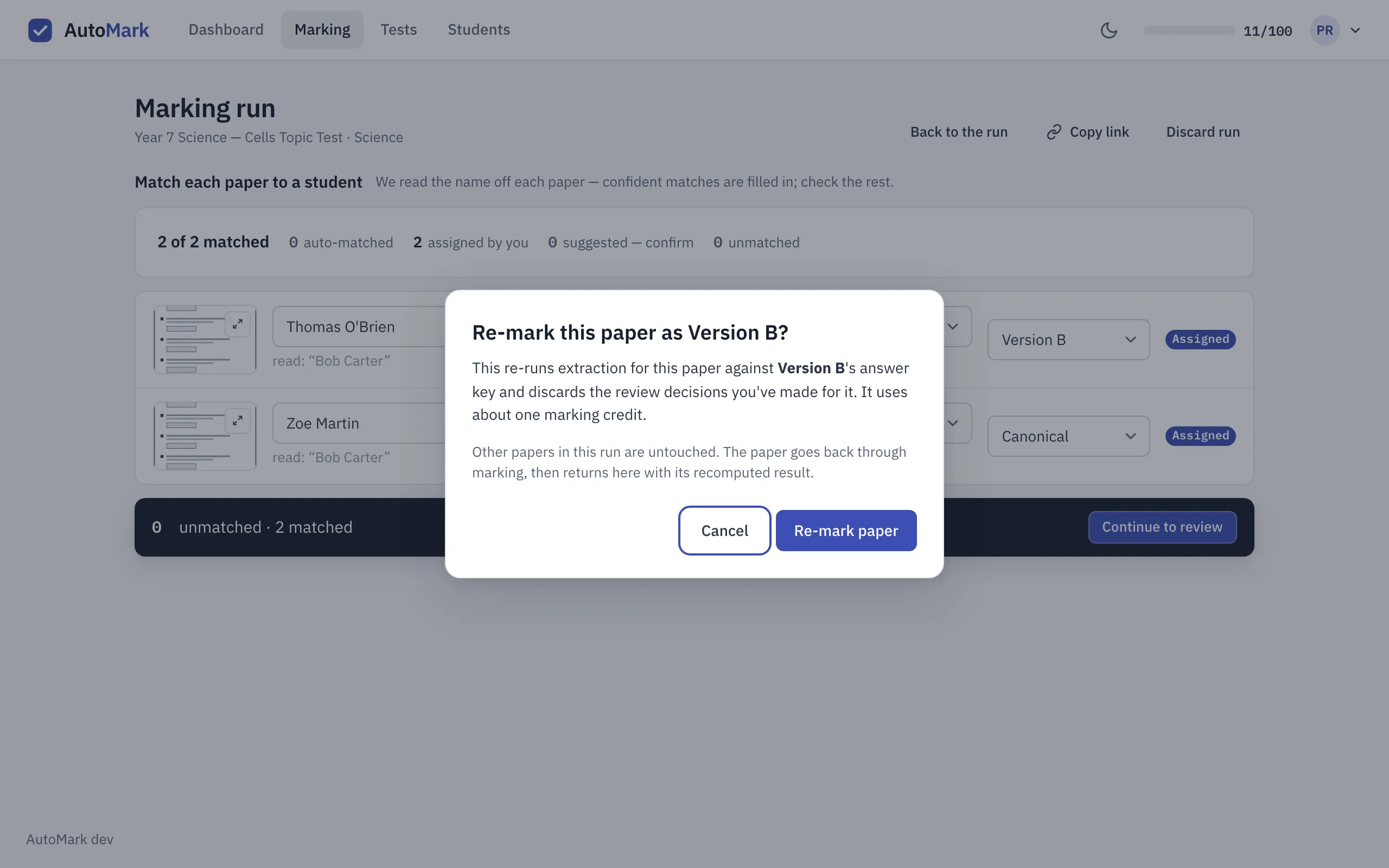
A paper whose QR marks were read shows a QR badge with its version instead of the list. Once a run is committed its marks are final; to fix a recorded result, use the correction steps in Reviewing and committing.
Reviewing a shuffled paper
Section titled “Reviewing a shuffled paper”On a review card for a shuffled multiple-choice question, the answer key shows the letter that was correct on that student’s version, along with the option’s wording and the version’s label. A student who wrote B on Version B is being compared with Version B’s key, not with the test as written.
Editing a test after printing versions
Section titled “Editing a test after printing versions”Fixing an answer key, the wording of a question, the text of an option or the marks keeps the current versions. Printed papers still line up, and marking uses your corrected key.
Adding or removing a question, changing a question’s type, adding, removing or reordering a question’s parts or its options, or changing how the test is numbered or split into sections means the printed versions no longer match. The print window then shows Printed copies no longer match this test and offers to regenerate. Papers you’ve already printed can still be marked against the right key: pick the version each was printed as on the Identify step. For new copies, choose Regenerate and print again.
Making and printing versions doesn’t use marking credits. Marking the papers uses credits in the usual way; see Credits and billing.
For printing a single paper and checking the layout first, see Printing papers and test versions.