How your printed paper looks
AutoMarkHQ lays out the paper your students sit for you. It places each answer box where AutoMarkHQ is designed to read it from the scan, and it doesn’t waste pages. You can adjust the layout in the test editor, and the preview beside your questions shows the actual paper as you change it. None of these settings change your questions, your answer key or how answers are marked. They only change where things sit on the page.
Multiple choice takes less room
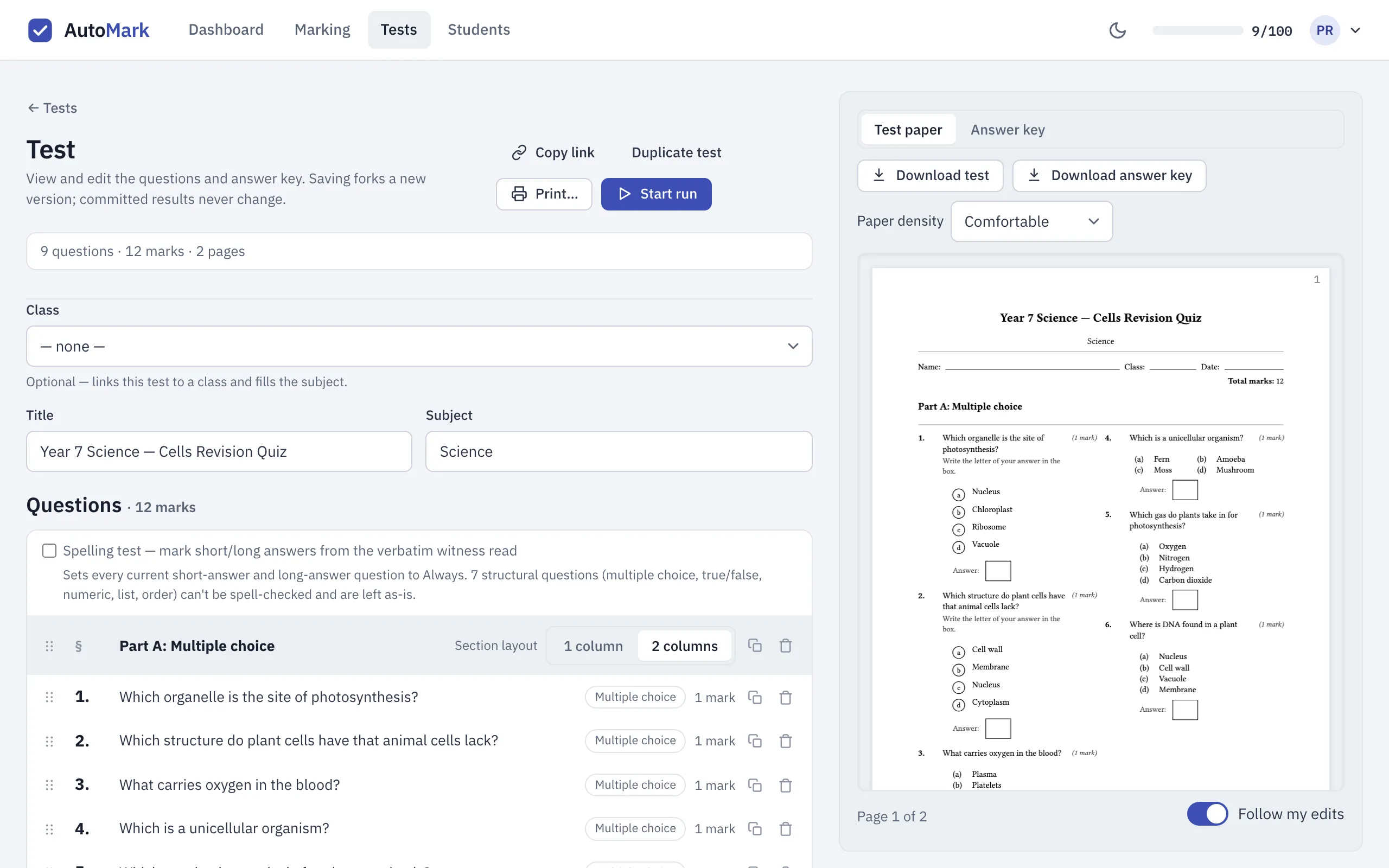
Section titled “Multiple choice takes less room”Short multiple-choice options print side by side, all on one row or two per row, rather than one under another. When four or more multiple-choice questions come one after another, AutoMarkHQ prints them in two columns. AutoMarkHQ keeps each question together rather than splitting it across columns or pages.
Each multiple-choice question still has a small Answer box under its options. The student writes the letter there, and that letter is what AutoMarkHQ reads.
Choose one or two columns for a section
Section titled “Choose one or two columns for a section”A section title in your test has a Section layout setting: 1 column or 2 columns. It applies from that title down to the next section title.
- 2 columns prints every question in the section in two columns. This suits a section of short questions, such as a vocabulary list, as well as multiple choice.
- 1 column keeps the whole section in a single column, even where AutoMarkHQ would otherwise put a run of multiple-choice questions in two.
If you don’t choose, AutoMarkHQ decides for each run of multiple-choice questions as described above.
AutoMarkHQ also avoids starting a section near the bottom of a page. If a section title would land in the bottom third of a page, the section moves to the top of the next page, so its heading stays with its questions.
Arrange a question’s options
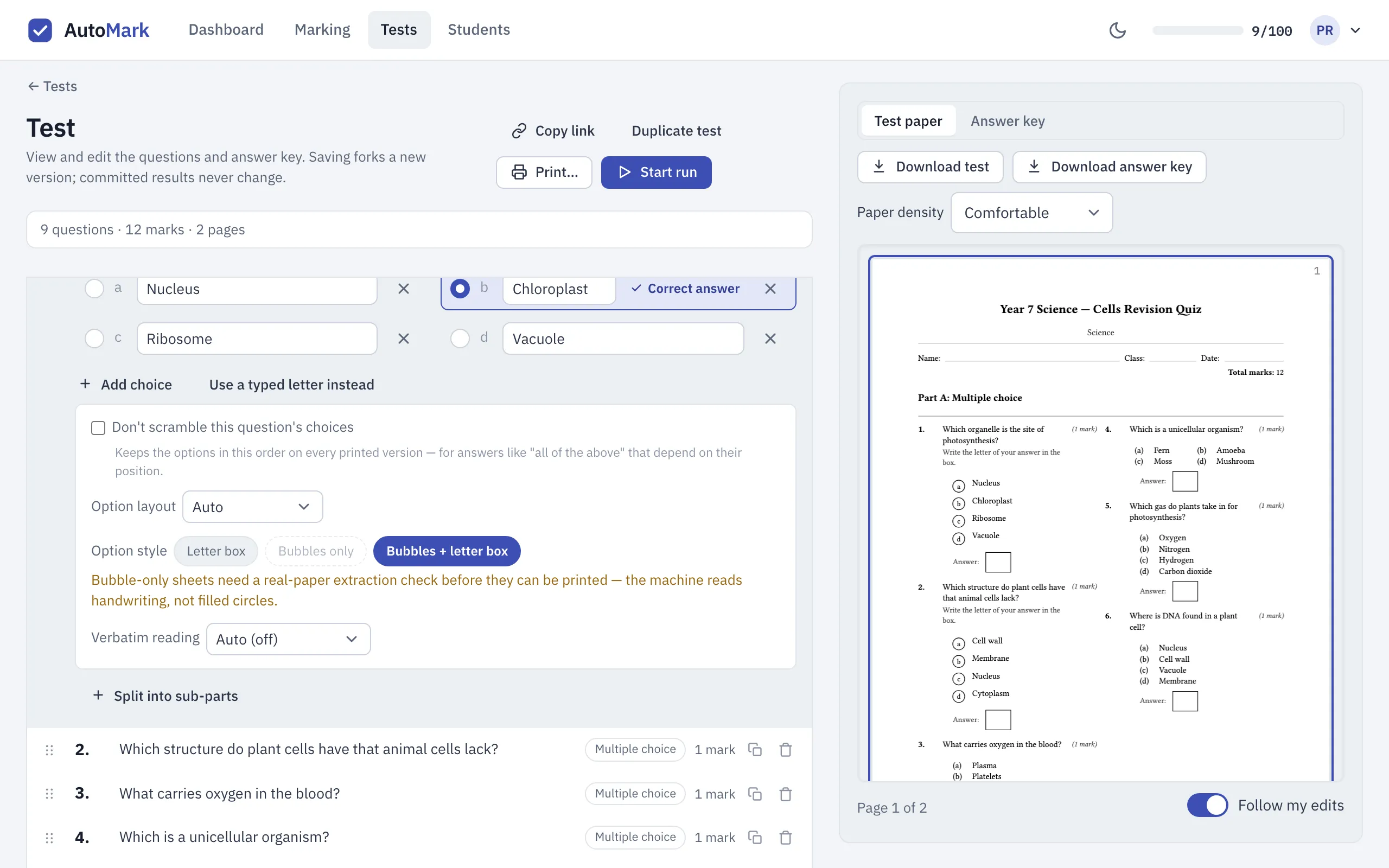
Section titled “Arrange a question’s options”Click a multiple-choice question in the editor to open it, then open its question options with the arrow at the right. Two settings control how its options print:
- Option layout: Auto lets AutoMarkHQ choose from the length of the options. Inline puts all options on one row, Grid puts two per row, and Stacked puts one per row. Use Stacked when options are long sentences that read better one per line.
- Option style: Letter box prints each option with a plain letter, such as (a), and an answer box underneath. Bubbles + letter box draws each option’s letter in a circle and keeps the answer box.
AutoMarkHQ reads what students write, not marks they shade. With either style, the letter written in the answer box is the answer AutoMarkHQ reads. AutoMarkHQ reads a shaded circle with nothing written in the box as a blank answer. That’s why Bubbles only is greyed out: on a paper with only circles to fill in, every answer would come back blank. If you print with bubbles, ask students to write their letter in the box too.
True or false questions
Section titled “True or false questions”A true or false question prints with an Answer box. The student writes True or False in the box, or your own labels if you’ve set them. AutoMarkHQ reads the written word, and it can read a circled word as blank, so true or false questions don’t use “circle one”.
Paper density: Comfortable or Compact
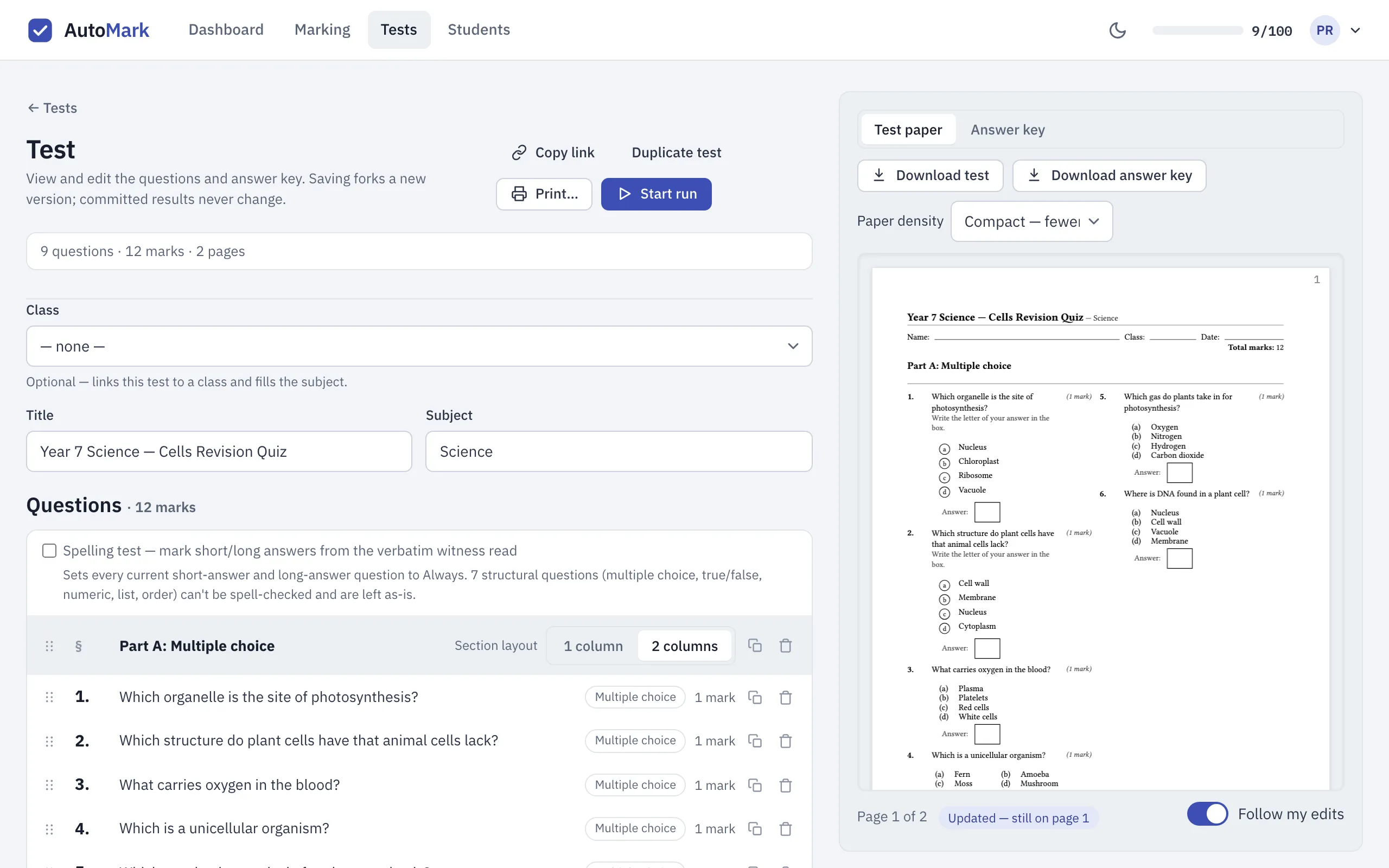
Section titled “Paper density: Comfortable or Compact”Next to Download test and Download answer key, the preview panel has a Paper density setting:
- Comfortable is the standard layout, with generous margins and writing space.
- Compact — fewer pages uses narrower margins, puts the title on one line, and spaces the questions more closely. AutoMarkHQ also gives long answers 5 ruled lines instead of 8, and short answers at most 3. If you’ve set the number of lines for a question yourself, Compact keeps your number.
The preview updates when you switch, so you can check the page count before you print. Your choice applies to the downloads you make from the panel. Save the test to keep it as that test’s setting for next time.
Print the copies your class sits
Section titled “Print the copies your class sits”Print the PDF at full size, one page per sheet. AutoMarkHQ has already fitted the paper to A4, and shrinking it to two pages per sheet makes the answer boxes and writing lines smaller than they’re designed to be. If you change the density after printing, download the paper again before printing more copies, so the whole class sits the same layout.